

ChatGPT Image Library: Browse, Organize & Reuse AI Images

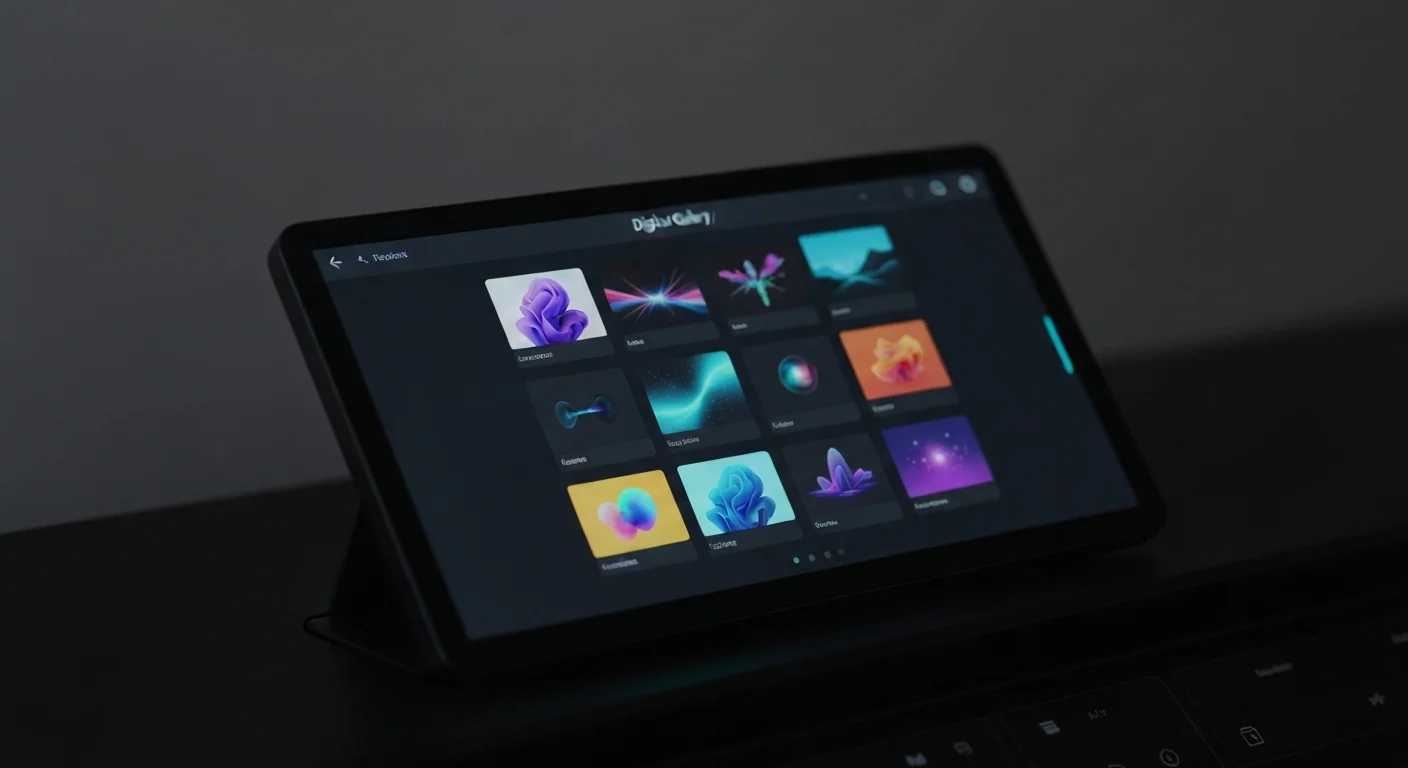
If you've ever generated an AI image in ChatGPT and then spent ten minutes scrolling through old conversations trying to find it again, you're not alone. The ChatGPT image library was built to solve exactly that problem — giving you a single, visual place to browse, organize, and reuse every image you've created inside ChatGPT. In this guide, we'll show you how to use it effectively, along with practical workflows for creators, marketers, and everyday users.
Whether you're making hero images for a blog, concept art for a project, or quick visuals for social media, learning how the chatgpt image library works will save you hours every week.
What Is the ChatGPT Image Library?
The ChatGPT image library is a dedicated gallery view inside ChatGPT that collects every image you've generated across all your conversations. Instead of digging through individual chats, you see a chronological grid of thumbnails — similar to a camera roll on your phone.
You can access it from the left sidebar (look for the "Library" or image icon) on both web and mobile. It's reportedly rolling out to Free, Plus, and Pro users, with generation limits that vary by plan.
Key capabilities include:
- Visual browsing — scroll through thumbnails instead of re-reading prompts
- Conversation recall — click any image to jump back to the original chat, where the prompt lives
- Quick reuse — regenerate variations or download originals in seconds
- Cross-device sync — images reportedly follow you between desktop, iOS, and Android
If you're new to AI image creation, our complete beginner's guide to generating AI images is a great foundation before diving deeper here.
How to Browse the ChatGPT Image Library
Opening the library is simple, but getting value out of it requires a browsing strategy.
Finding the Library
On desktop, click your profile menu or look for the "Library" shortcut in the left sidebar. On mobile, tap the menu icon and select "Library." Images are sorted newest-first by default.
Scanning and Locating
At launch, the library doesn't officially offer search, tagging, or filters — you scroll visually through thumbnails. ChatGPT reportedly auto-generates a short title describing each image, which makes it easier to spot what you're after at a glance. If you need to find something specific, the fastest path is still to scan the grid or use your browser's find-in-page (Ctrl/Cmd+F) on the visible titles.
Previewing Details
Click any thumbnail to open a full-size preview. You'll typically see:
- An auto-generated title describing the image
- Download, copy, and share options
- An "Edit" button that opens the original conversation so you can tweak or regenerate with new instructions
This context is gold — once you're back in the source chat you can copy a successful prompt pattern and tweak it for new projects.
Organizing Your AI-Generated Images
The chatgpt image library doesn't (yet) offer folders or tags natively, so organization relies on naming conventions and external backups. Here's a system that works well:
1. Use Descriptive Prompts
Because ChatGPT reportedly generates titles from the image contents, clear, specific prompts tend to produce clearer titles in your library. Instead of "make a cool image," write "minimalist blue product hero image for SaaS landing page." You'll thank yourself in three months.
2. Star or Download Winners
When you generate something you love, download it immediately to a local folder structured by project (e.g., /AI-Assets/Q2-Blog-Covers/). Cloud sync via Dropbox or Google Drive keeps them safe across devices.
3. Group by Conversation
For larger projects, start a dedicated ChatGPT conversation per theme — one for blog visuals, one for social media, one for product mockups. The library still aggregates everything, but the source conversations act as project folders.
For a deeper look at organizing AI work inside ChatGPT, check our guide on how to use ChatGPT Canvas, which pairs beautifully with image workflows.
Reusing Images Effectively
The real power of the chatgpt image library shows up when you start reusing assets rather than regenerating from scratch.
Generating Variations
Open any image, click "Edit" or "Make variations," and ask ChatGPT to adjust the style, colors, aspect ratio, or subject. You keep the winning composition while exploring new directions — much faster than starting over.
Reusing Prompts as Templates
Found a prompt that produces consistent results? Save it as a template in a notes app or a ChatGPT project. For example:
"Flat vector illustration, soft pastel palette, single-line style, white background, centered subject: [TOPIC]"
Swap [TOPIC] for new subjects and get a consistent brand look every time.
Building Image Sets
For blog series, course thumbnails, or social campaigns, use the library to ensure visual consistency. Reference earlier images by asking: "Match the style of the last image I made but change the subject to a laptop."
Tips, Limits, and Best Practices
A few things to keep in mind while working with the chatgpt image library:
- Generation limits — Free users get a small daily quota; Plus and Pro users get significantly more. Heavy creators may prefer a dedicated tool like Midjourney.
- Retention — Images stored in the library are tied to your account. Because deleting a conversation reportedly removes its images too, always download anything critical before tidying up your chat history.
- Copyright and usage — OpenAI generally grants broad usage rights, but double-check the latest terms for commercial work.
- Quality vs. speed — ChatGPT's built-in image model (the successor to DALL·E) is excellent for quick ideation. For higher fidelity or stylistic control, compare it with our DALL·E vs Midjourney vs Gemini Imagen comparison.
If you want to master every image tool in one place, our Midjourney & DALL·E Mastery course walks through professional workflows step by step. And to squeeze more value from ChatGPT overall, the ChatGPT Power User course covers advanced techniques beyond images.
Final Thoughts
The ChatGPT image library transforms AI image generation from a scattered, chat-by-chat process into a visual, searchable workspace. By browsing smart, organizing with descriptive prompts, and reusing winning templates, you'll build a personal asset library that compounds in value over time.
Start by opening your library today, downloading your five favorite images, and saving their prompts as templates. Small habits like these turn ChatGPT from a toy into a real creative engine — and make every future image generation faster and better than the last.
Enjoyed this article?
Join The FreeAcademy Weekly
One practical AI email every Tuesday. New free courses, AI tips, and a short note from the founder.
Free forever. Unsubscribe anytime.
Related articles
Midjourney vs ChatGPT Images vs Stable Diffusion vs Flux: AI Image Generation Comparison 2026
Compare the top AI image generators in 2026: Midjourney V8, ChatGPT Images 2.0 (GPT Image 2), Stable Diffusion 3.5, and Flux 2. Pricing, image quality, ease of use, and best use cases compared side-by-side.
GPT-5.6 vs GPT-5.5: What Changed and Should You Upgrade (2026)
GPT-5.6 replaced one model with three variants. Here is what actually changed from GPT-5.5, who should upgrade, and the gotchas to know first.
What Is GPT-Live? OpenAI's Real-Time Voice AI Explained
GPT-Live is OpenAI's full-duplex voice AI that listens and speaks at once. Learn what it is, how it differs from Advanced Voice Mode, and who can use it.