

How to Use ChatGPT Canvas: The Complete Beginner's Guide

If you've ever tried to edit a long document inside a regular ChatGPT conversation, you know the frustration. You ask for a change, the model rewrites the entire thing, you lose track of what changed, and the conversation becomes an unreadable wall of text. ChatGPT Canvas fixes this.
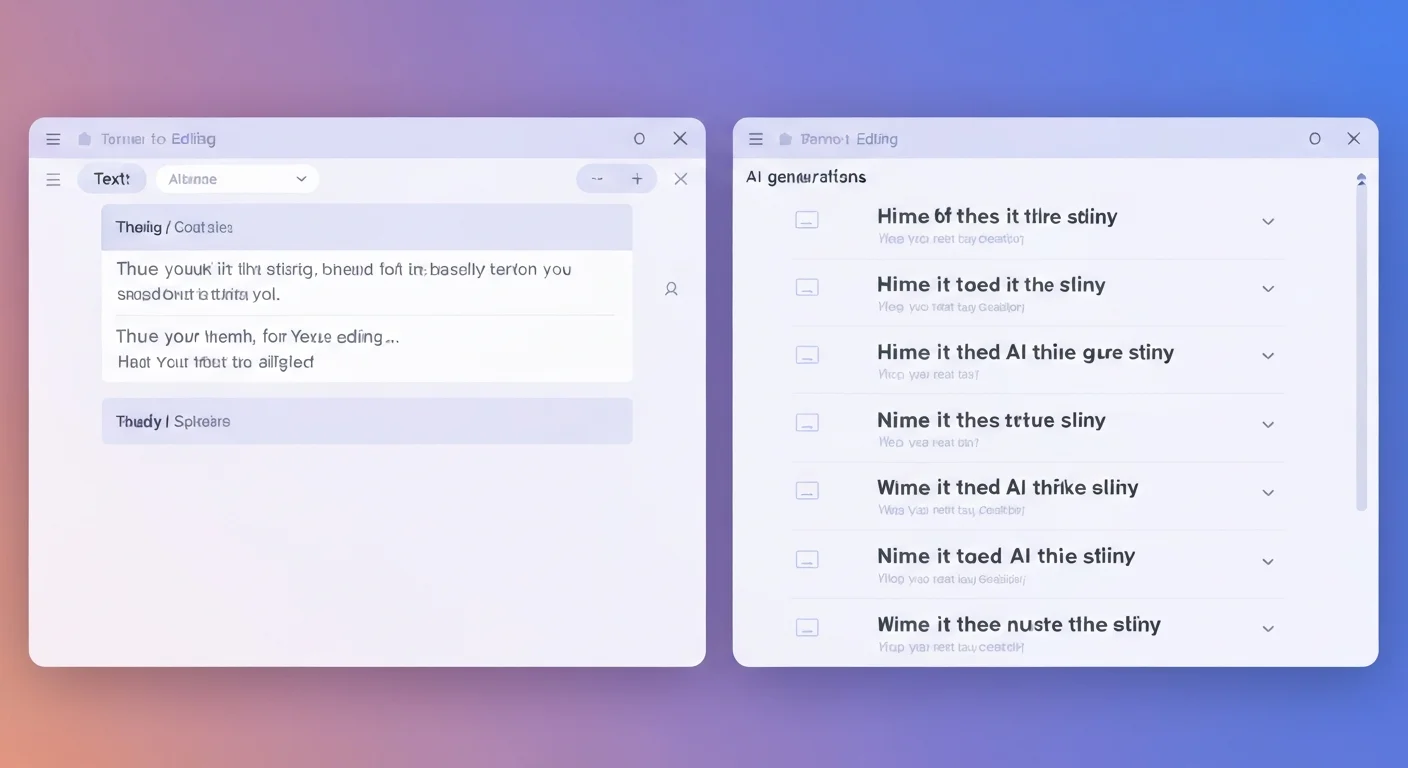
Canvas is a dedicated co-editing panel that sits alongside the chat. Instead of rewriting the whole document in every reply, changes happen inline — highlighted, trackable, and easy to accept or reject. It launched in late 2024 and has become one of the most useful features for anyone doing serious writing or coding with ChatGPT.
Here's everything you need to know to start using it.
What Is ChatGPT Canvas?
Canvas is a side-by-side workspace mode in ChatGPT. When you open a Canvas, your document or code appears in a dedicated editor panel on the right. The chat continues on the left. You can type instructions in chat and watch the AI make precise edits directly in your document — no copy-pasting, no lost context.
It's available to ChatGPT Plus, Team, and Enterprise users, and it works for both text documents and code. Think of it as Google Docs with an AI co-author who actually edits in the document rather than dumping rewrites in the chat.
How to Open Canvas
Opening Canvas is straightforward:
- Start a new conversation in ChatGPT
- Look for the pencil icon (✏️) in the message input bar — it's on the left side of the text field
- Click it to toggle Canvas mode on
- Type your prompt as usual — Canvas will open automatically once ChatGPT starts generating content
Alternatively, you can just ask ChatGPT to open a Canvas directly: "Open a Canvas and help me write a blog post about X." ChatGPT will recognise the request and switch modes automatically.
Once Canvas is open, you'll see the document on the right and chat on the left. You can edit the document manually at any time — it's a real editor, not just a display pane.
Canvas Mode vs Regular Chat: What's the Difference?
In regular chat, every edit request produces a new message. The AI rewrites the content and posts it as a reply. You end up with multiple versions scattered down the conversation, no clear track of what changed, and a lot of scrolling.
In Canvas mode, edits happen in the document itself. Changed sections are highlighted so you can see exactly what the AI modified. You can hover over a change and accept or reject it. You can also highlight specific text in the Canvas and ask the AI to work on just that section — without touching the rest.
For iterative work — anything where you're going back and forth refining a piece — Canvas is significantly more efficient than regular chat.
5 Practical Use Cases for Canvas
1. Refining a Blog Post
Paste a draft blog post into Canvas and use the chat to direct specific improvements. "Make the introduction more punchy — cut it by 30%." "Rewrite paragraph 3 to be more concrete — add a specific example." Each instruction targets the relevant section. Your overall structure stays intact.
2. Debugging Code
Paste a function or script into Canvas and describe the bug. The AI edits the code directly in the panel, highlighting exactly what it changed. You can see the fix in context rather than trying to spot the difference in a chat reply.
3. Rewriting Sections
Select a specific paragraph or block in Canvas and ask for a rewrite with different tone, length, or focus. The rest of the document is untouched. This is much cleaner than asking "rewrite section 2" in chat — you're working with precision.
4. Expanding an Outline
Start with a bullet-point outline in Canvas. Then work through it section by section: "Expand bullet 3 into a full 200-word section." The outline fills in progressively, and you can adjust each section before moving to the next.
5. Iterating on a Cover Letter
Cover letters require careful tuning — the same letter needs different emphasis for different roles. Use Canvas to keep the base letter open while you chat through iterations. "Add a sentence about stakeholder management in paragraph 2." "Make the closing more confident." You end up with a polished, custom letter without starting from scratch each time.
Tips for Getting the Most Out of Canvas
Be specific about what to change. The more precise your instruction, the cleaner the edit. "Shorten this paragraph" is good. "Cut this paragraph from 5 sentences to 3, keeping the main statistic" is better.
Use selection for targeted edits. Highlight text in the Canvas panel before typing your instruction. This tells the AI exactly where to focus, reducing the chance it'll touch parts you're happy with.
Accept/reject changes before moving on. ChatGPT tracks edits in the current session. Reviewing and accepting changes as you go keeps the document clean and prevents confusion about what's current.
Combine Canvas with GPT-4o. Canvas works best with the more capable models. If you notice it defaulting to a faster model, switch manually — complex edits benefit from the extra reasoning.
Don't neglect manual edits. Canvas is a real editor. You can type directly in it. Sometimes the fastest path is to make a small tweak yourself rather than chatting for it.
Start Co-Editing Like a Pro
Canvas changes the way you work with AI on documents. Instead of a question-and-answer loop, it becomes a true collaborative editing session — you direct, the AI executes, and you stay in control of the final output.
If you want to master not just Canvas but the full ChatGPT toolkit — custom GPTs, advanced prompting, Projects, and more — check out our free ChatGPT Power User course on FreeAcademy. It's designed for people who want to go beyond the basics and actually get results.
Enjoyed this article?
Join The FreeAcademy Weekly
One practical AI email every Tuesday. New free courses, AI tips, and a short note from the founder.
Free forever. Unsubscribe anytime.
Related articles
How Translators Use AI: Post-Editing, Glossaries & Interpreter Prep
A practical guide to how translators and interpreters use AI: machine translation post-editing, glossary building, consistency checks, and interpreter prep workflows.

ChatGPT Projects Explained: How to Organise Your AI Work Like a Pro
ChatGPT Projects lets you create separate AI workspaces with custom instructions and uploaded files. Stop repeating yourself — here's how to set them up.

How to Use AI Agents in Your Daily Workflow (2026 Guide)
AI agents can now browse the web, write code, manage files, and execute multi-step tasks autonomously. Here is how to actually put them to work in your daily routine — no coding required.