How to Generate AI Images: Beginner's Guide to 2026 Tools

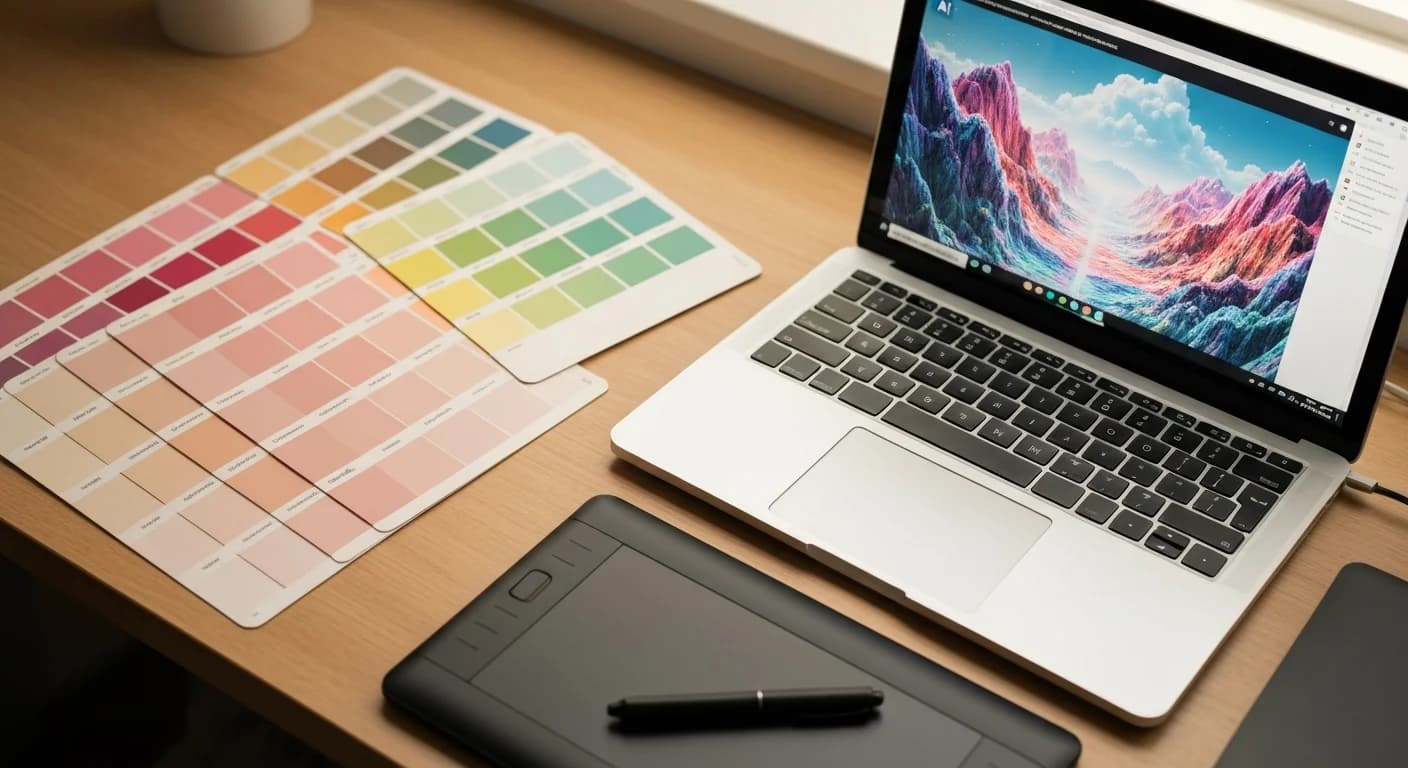
Whether you want to design social media graphics, illustrate a blog post, or simply bring an idea to life, AI image generators make it possible with just a few words. This ai image generation guide walks you through everything you need to know — from choosing the right tool to writing your first prompt — so you can start creating professional-quality visuals today.
AI-powered text-to-image models have matured rapidly. In 2026, tools like Midjourney, OpenAI's GPT Image 1.5, Stable Diffusion, and Google's Imagen 4 produce images that rival professional photography and illustration. The best part? Many of them are free to start with.
How Text-to-Image AI Actually Works
Before diving into the tools, it helps to understand the basics. Text-to-image models are trained on billions of image-text pairs scraped from the internet. When you type a prompt — say, "a cozy coffee shop on a rainy evening, watercolor style" — the model translates your words into a visual representation by predicting what pixels best match the description.
Most modern generators use diffusion models, which start with random noise and gradually refine it into a coherent image guided by your text. The quality of your output depends heavily on two things: the model you choose and the prompt you write.
Choosing Your First AI Image Generator
Here is a quick look at the most popular options in 2026, organized by what matters most to beginners.
Free or Freemium Options
- Microsoft Copilot (Designer) — Uses OpenAI's image models under the hood. Completely free with a Microsoft account and great for quick generations.
- Google Gemini (Imagen 4) — Available free inside Gemini. Strong photorealism and good at following complex prompts.
- Stable Diffusion — Open-source and free to run locally. Requires some technical setup, but offers unlimited generations with no subscription.
Paid Options Worth Considering
- Midjourney — Still the gold standard for artistic, stylized images. Starts at $10/month.
- GPT Image 1.5 (via ChatGPT Plus) — Excellent prompt adherence and text rendering. Included with ChatGPT Plus at $20/month.
Not sure which tool fits your needs? You can compare the top AI image generators in our detailed breakdown.
Your AI Image Generation Guide: Writing Effective Prompts
The prompt is everything. A vague prompt produces a generic image. A specific, well-structured prompt produces something remarkable. Here is a simple formula that works across every platform:
Subject + Style + Details + Mood
For example:
A golden retriever puppy sitting in a field of sunflowers, oil painting style, warm afternoon light, cheerful atmosphere
Compare that with just typing "dog in flowers" — the difference in output quality is dramatic.
Prompt Tips for Beginners
- Be specific about the subject. Instead of "a city," try "a futuristic Tokyo skyline at dusk."
- Name an art style. Terms like watercolor, photorealistic, 3D render, anime, or editorial photography steer the model in a clear direction.
- Describe lighting and mood. "Soft morning light" or "dramatic chiaroscuro" can transform an ordinary scene.
- Use negative prompts when available. Many tools let you specify what to exclude — for example, "no text, no watermarks."
- Iterate and refine. Your first attempt rarely nails it. Adjust a few words, regenerate, and compare.
If prompt writing feels unfamiliar, our guide on prompt writing fundamentals covers the core techniques that apply to image generators too.
Step-by-Step: Generating Your First AI Image
Let's walk through the process using a free tool — Microsoft Copilot — so you can follow along without spending anything.
Step 1: Open the Tool
Go to copilot.microsoft.com and sign in with your Microsoft account.
Step 2: Write Your Prompt
In the chat box, type something like:
Create an image of a minimalist home office with large windows overlooking a forest, Scandinavian design, natural light, photorealistic
Step 3: Review and Iterate
Copilot will generate several variations. Pick the one closest to your vision, then refine your prompt if needed. Try adding details like "birch wood desk" or "morning fog outside" to get closer to what you imagined.
Step 4: Download and Use
Once you are happy with the result, download the image. Most free tools generate at 1024×1024, which works well for web and social media.
Common Mistakes in This AI Image Generation Guide to Avoid
Even with a solid ai image generation guide, beginners tend to hit the same roadblocks:
- Prompts that are too short. "A cat" gives you a generic stock-photo cat. Add context, style, and mood.
- Ignoring aspect ratio settings. Many tools default to square. If you need a landscape banner or portrait poster, set the ratio before generating.
- Over-stuffing the prompt. While detail helps, cramming twenty conflicting ideas into one prompt confuses the model. Focus on one clear scene.
- Forgetting about copyright. Each platform has different terms of service regarding commercial use. Check before using AI-generated images in client work or products.
What Can You Actually Do With AI Images?
The practical applications are enormous and growing:
- Content creation — Blog headers, social media posts, newsletter visuals
- Prototyping — Quickly visualize product concepts, app mockups, or architectural ideas
- Education — Create custom illustrations for presentations or course materials
- Personal projects — Book covers, game assets, gift cards, wall art
For a broader look at how AI tools fit into your daily workflow, check out our AI tools cheat sheet which covers the best free tool for every task.
Taking Your Skills Further
This ai image generation guide covers the fundamentals, but there is much more to explore. Advanced techniques include inpainting (editing parts of an image), outpainting (extending an image beyond its borders), ControlNet for precise composition, and training custom models on your own style.
If you want hands-on practice with prompt techniques specific to image generators, our free course on AI image prompts is a great next step. For broader prompting skills that transfer to text-based AI tools as well, our Prompt Engineering course covers the underlying techniques behind every effective prompt.
Conclusion
AI image generation has gone from a novelty to a practical creative tool that anyone can use. You don't need design skills, expensive software, or a powerful computer — just a clear idea and a well-written prompt. Start with one of the free tools mentioned in this guide, experiment with different styles and subjects, and you will be surprised how quickly you improve.
The barrier between imagination and visual output has never been lower. Open a tool, type a prompt, and start creating.
Enjoyed this article?
Join The FreeAcademy Weekly
One practical AI email every Tuesday. New free courses, AI tips, and a short note from the founder.
Free forever. Unsubscribe anytime.
Related articles
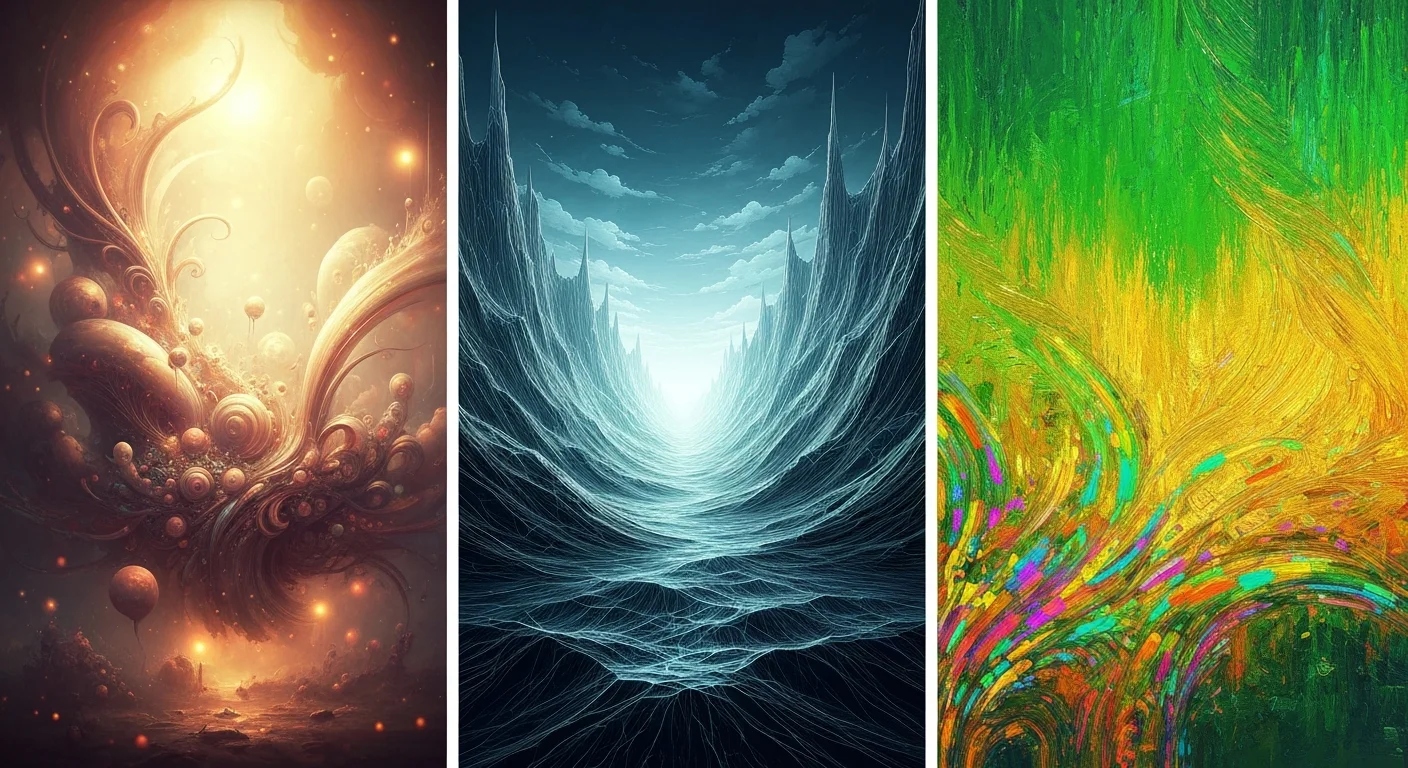
Midjourney vs DALL-E vs Gemini Imagen: AI Image Generation Comparison 2026
Compare Midjourney, DALL-E 3, and Google Gemini Imagen for AI image generation in 2026. Pricing, quality, ease of use, and best use cases compared side-by-side.
Best Free AI Image Generation Courses for Beginners 2026
Discover the best free AI image generation courses for beginners in 2026. Learn Midjourney, DALL-E, Stable Diffusion, and Flux with hands-on tutorials.
Midjourney vs ChatGPT Images vs Stable Diffusion vs Flux: AI Image Generation Comparison 2026
Compare the top AI image generators in 2026: Midjourney V8, ChatGPT Images 2.0 (GPT Image 2), Stable Diffusion 3.5, and Flux 2. Pricing, image quality, ease of use, and best use cases compared side-by-side.