How to Make Animations with AI in 2026: Beginner's Guide


Not long ago, animation meant years of training, expensive software, and hours of tedious frame-by-frame work. In 2026, you can type a sentence, wait a minute, and watch a fully animated clip appear on your screen. If you have ever wanted to make animations with AI but assumed you needed a design degree, this guide is for you.
We will walk through four of the most beginner-friendly tools available today — Runway, Pika, Kling, and Canva — and show you exactly where each one shines. By the end, you will know which tool to reach for and how to get your first animation done this afternoon.
What "AI Animation" Actually Means in 2026
Modern AI animation tools fall into two broad buckets:
- Text-to-video: You describe a scene in words ("a paper boat floating down a rainy street at dusk") and the model generates moving footage.
- Image-to-video: You upload a still image and the AI brings it to life — adding camera motion, character movement, or environmental effects like wind and water.
Most tools now do both, plus extras like lip-syncing, style transfer, and extending short clips into longer sequences. The quality jump over the past two years has been dramatic: motion is smoother, faces are more stable, and the dreaded "melting" artifacts have largely disappeared.
You do not need a powerful computer. Everything below runs in your browser.
Runway: The Creative Powerhouse
Runway is the tool professionals reach for, but it stays approachable for beginners. Its Gen-series models produce cinematic, high-fidelity clips with impressive control over camera movement and lighting.
Best for: Filmmakers, marketers, and anyone who wants polished, story-driven footage.
How to make your first Runway animation
- Sign up and open a new project.
- Choose Text to Video or upload a reference image.
- Write a clear prompt. Be specific about subject, action, mood, and camera: "Slow dolly-in on a lone astronaut standing on a red desert, golden hour, cinematic."
- Set the clip length and generate.
- Use the Extend feature to stitch clips into a longer scene.
Runway also offers motion brushes that let you paint exactly which parts of an image should move — perfect for making just the clouds drift while everything else stays still.
Pika: Fast, Fun, and Social-Ready
Pika built its reputation on speed and playful effects. Its signature "Pikaffects" let you make objects explode, inflate, melt, or crush in a single click — the kind of eye-catching moments that perform well on short-form video platforms.
Best for: Social media creators who need quick, shareable clips.
Pika's interface is friendly and forgiving. Upload an image, pick an effect or type a short prompt, and you will have a clip in under a minute. It is the ideal sandbox for learning how prompts translate into motion without a steep learning curve.
A quick Pika example
Upload a photo of a coffee cup, type "steam rising, gentle morning light," and Pika animates the steam realistically. Swap in a Pikaffect and watch the same cup dramatically crush into dust. It is a great way to build prompt intuition fast.
Kling: Long, Realistic Motion
Kling has become a favorite for one big reason: it handles longer clips with remarkably realistic physics. Where some tools struggle past a few seconds, Kling maintains coherent motion, believable body movement, and stable environments.
Best for: Realistic human motion, product demos, and longer establishing shots.
Its image-to-video mode is especially strong. Feed it a portrait and it produces natural expressions and gestures rather than the stiff, robotic movement older models were known for. If your project depends on lifelike people or smooth, extended camera work, start with Kling.
Canva: Animation Inside a Design Tool You Already Know
If Runway, Pika, and Kling feel too specialized, Canva is the gentlest on-ramp. Millions already use it for graphics, and its AI video and animation features live right inside the same familiar editor.
Best for: Beginners, educators, small businesses, and anyone building presentations or social posts.
Canva lets you:
- Turn text prompts into short video clips with its Magic Media tools.
- Animate individual elements (text, shapes, photos) with one-click entrance and emphasis effects.
- Drop AI-generated clips straight into a full design with music, captions, and branding.
You will not get Runway-level cinematics, but for a polished Instagram Reel or a lively slide deck, Canva gets you there with almost no learning curve.
Which Tool Should You Choose?
Here is a simple way to decide:
- Want cinematic, controllable footage? → Runway
- Want fast, fun clips for social media? → Pika
- Want long, realistic human or camera motion? → Kling
- Want the easiest start inside a familiar editor? → Canva
Many creators mix them. A common workflow: generate a clean base clip in Kling, add a dramatic effect in Pika, then assemble everything with music and captions in Canva.
Tips to Get Better Results
No matter which tool you use, these habits will dramatically improve your animations:
- Be specific in prompts. Name the subject, action, lighting, and camera movement. Vague prompts produce vague results.
- Start with an image. Image-to-video gives you far more control than text alone, because you lock in the look before adding motion.
- Keep clips short. Generate a few seconds at a time and stitch them together — quality is highest in short bursts.
- Iterate. Your first generation is a draft. Tweak one variable at a time and regenerate.
- Mind the licensing. Check each tool's commercial-use terms before publishing client work.
Start Animating Today
The barrier to animation has never been lower. With a browser and a free trial, you can make animations with AI in the time it takes to drink a coffee. Pick one tool from this list, write a single descriptive prompt, and generate your first clip — then let curiosity take over from there.
Want to go deeper into AI creative tools, prompting, and video generation? Check out our free AI Video Generation & Editing course — it covers text-to-video with Runway and Pika, AI editing with CapCut and Descript, and complete video production workflows, with a certificate when you finish. Turn today's experiment into a real skill.
Enjoyed this article?
Join The FreeAcademy Weekly
One practical AI email every Tuesday. New free courses, AI tips, and a short note from the founder.
Free forever. Unsubscribe anytime.
Related articles
Best Free AI Video Creation Courses in 2026
The best free AI video creation courses in 2026: text-to-video generation, AI editing with CapCut, animation, voiceovers, and music, with free certificates.
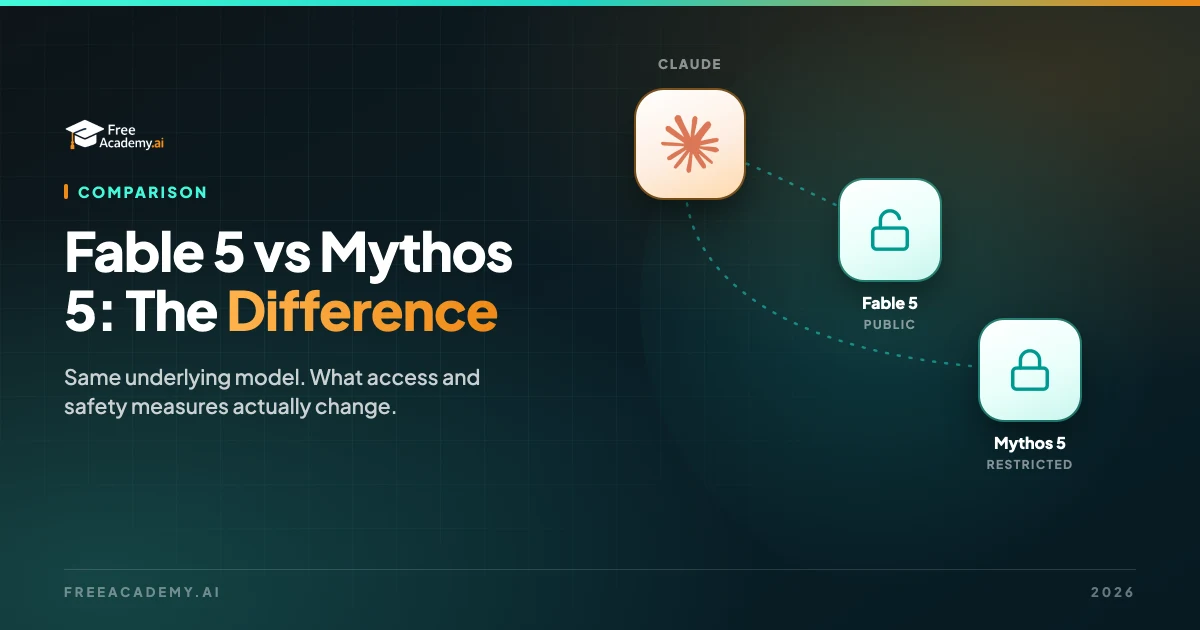
Claude Fable 5 vs Mythos 5: What Is the Difference?
Fable 5 and Mythos 5 share the same underlying model. The difference is access and safety measures. Here is what each one is and which one you can actually use.
Grok 4.6 Explained: What Changed, What It Costs, and How It Compares
xAI released Grok 4.6 on August 12, 2026. Here is what changed vs Grok 4.5, the real pricing with the 200K threshold, and how it compares to GPT-5.6 and Claude.