What Is Computer Use? AI Agents That Control Your Screen

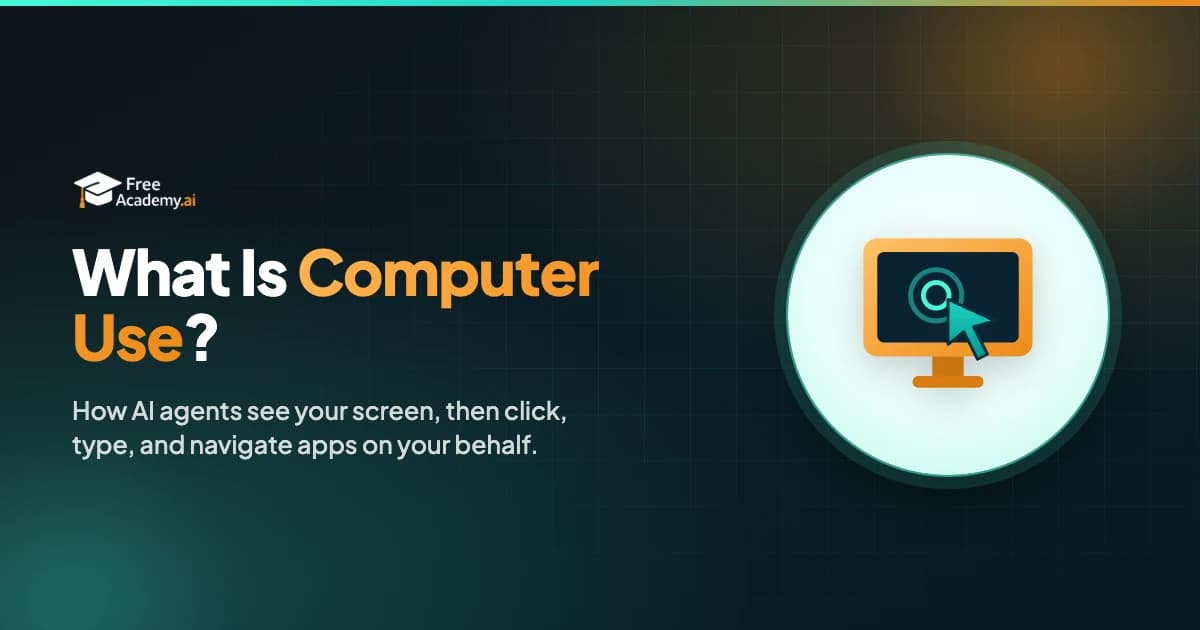
Most AI tools work through text. You type a question, the model types an answer. A newer class of AI can do something different: it can look at your screen, move the mouse, click buttons, and type into apps, just like a person sitting at the keyboard. This capability is called computer use, and it is one of the most practical ideas in AI agents right now.
If you have wondered what is computer use AI and how these agents control your screen, this guide explains the mechanics in plain language. We will cover how the screenshot-to-action loop works, how it differs from the API agents you may already know, which products offer it today, and where it actually makes sense to use. If you are brand new to agents, the post on what AI agents are is a good starting point.
What "computer use" actually means
Computer use is the ability of an AI model to operate a graphical interface the same way a human does. Instead of calling a function or hitting an endpoint, the agent works with what is on the screen: it sees the pixels, figures out where things are, and sends low-level input commands.
The vocabulary is small and physical:
- See. The agent receives a screenshot of the current screen.
- Decide. The model reasons about what it is looking at and what to do next.
- Act. It emits an action: move the cursor to coordinates, click, double-click, type text, scroll, or press a key combination.
That is the whole idea. The agent does not need to know how an app is built. If a human can use it by looking and clicking, the agent can attempt it too. That is what makes computer use so broadly applicable, and also why it is harder to get right than a clean API call.
How the screenshot-to-action loop works
Under the hood, computer use runs as a loop. Each pass through the loop is one small step toward the goal.
- Capture the screen. A screenshot is taken and sent to the model along with the task and the history so far.
- Reason about the screen. The model uses its vision ability to read the interface: it identifies buttons, fields, menus, and text, and works out the next action.
- Emit an action. The model responds with a specific command, for example "move to x=640, y=410 and click" or "type the search query."
- Execute the action. Software on the computer carries out that command (a real click, real keystrokes).
- Capture again. A fresh screenshot is taken so the model can see the result of what it just did.
- Repeat. The loop continues until the task is done or the agent decides to stop.
Notice the rhythm: screenshot, think, act, screenshot, think, act. The agent is essentially playing a turn-based game where every turn it gets one new picture of the world and makes one move. This is very different from the planning and reasoning patterns inside the agent loop itself. If you want the deeper view of how agents reason, plan, and chain steps, see how agentic workflows let LLMs reason, act, and collaborate.
Two things make this loop work better than it used to. First, stronger vision: recent models read higher-resolution screenshots and can point at pixel-accurate coordinates, which matters a lot when the difference between the right button and the wrong one is a few pixels. Second, better reasoning: the model has to hold the goal in mind across dozens of small steps without getting lost.
How computer use differs from API and tool-calling agents
Most "AI agents" you read about use tools through APIs. The agent calls a function like search_flights(origin, destination, date), the function returns clean structured data, and the agent reasons over it. This is fast, reliable, and cheap, because the data is already in a form the model understands.
Computer use throws that away. There is no function and no structured response. The agent gets a picture and has to figure everything out visually. Here is the contrast:
| Aspect | Tool-calling / API agent | Computer-use agent |
|---|---|---|
| How it interacts | Structured API calls | Screenshots plus mouse and keyboard |
| What it receives back | Clean structured data | A new image of the screen |
| Speed | Fast (one round trip per call) | Slower (a loop of screenshots) |
| Cost | Lower (text tokens) | Higher (images each turn add up) |
| Reliability | High when the API is stable | Lower, sensitive to layout changes |
| Coverage | Only apps with an API | Any app a human can use |
The trade-off is coverage versus everything else. An API agent is the better tool whenever a good API exists. A computer-use agent earns its keep precisely when no API exists, which turns out to be a large part of the real world: internal dashboards, legacy desktop software, niche web apps, and tools locked behind a login with no developer access.
Cost and latency are the practical catch. Every turn sends a fresh screenshot, and images are far heavier than text. A task that takes twenty clicks is twenty screenshots flowing through the model, so computer use is usually reserved for workflows where the alternative (a human doing it by hand, or no automation at all) is worse.
The main implementations today
Several companies now offer computer use in different forms. Here is a fair picture of the landscape as of mid-2026, described at a general capability level.
Anthropic's computer use
Anthropic offers computer use as a tool on its Messages API. Claude (for example, Claude Opus 4.8) takes a screenshot of the screen, reasons about it, and issues mouse and keyboard commands (click, type, scroll, keypress), then receives a fresh screenshot and continues. You can run it self-hosted, where you provide the desktop environment and execute the actions Claude requests, or use an Anthropic-hosted setup.
The accuracy of this loop improved with higher-resolution vision introduced in the Claude Opus 4.7 generation, which lets the model read larger images and return pixel-accurate coordinates. For computer use specifically, sending screenshots at roughly 1080p is a reasonable balance of performance and cost. This is an available API capability that is still maturing rather than a finished, hands-off product, so treat it as powerful but supervised.
OpenAI's computer-using agent
OpenAI built a computer-using agent that originally launched as a standalone product called Operator. That standalone surface was retired, and the underlying capability now lives inside ChatGPT's agent experience for consumers and is exposed to developers through OpenAI's agent tooling. The core idea is the same screenshot-and-control loop: the model sees the screen, decides, and acts. The packaging shifted from a separate app to a feature inside the broader product.
Manus "My Computer"
Manus took a desktop-first approach with a feature called My Computer, delivered through a desktop application for macOS and Windows. Rather than driving a remote browser, it connects the agent directly to your local machine: it can run terminal commands, read and edit local files, and launch and control applications you already have installed. That makes it well suited to end-to-end local workflows, for example gathering data on the web, saving it locally, processing it with a script, and producing a finished file. Notably, it keeps the user in control with explicit approval prompts (an "allow once" option for one-off review and an "always allow" option for trusted recurring actions).
The common thread
All of these share the same engine: a vision-capable model in a perceive-decide-act loop. They differ mainly in where the computer lives (a hosted browser, a cloud sandbox, or your own desktop) and how much they ask before acting. When you evaluate one, the questions that matter are how reliably it completes multi-step tasks, how it handles permissions, and whether it operates somewhere safely isolated from your real data.
When UI automation is the right tool
Computer use is not a replacement for clean integrations. It is the tool you reach for when the clean path does not exist. It shines in three situations:
- No API is available. A vendor's web app or a SaaS tool you depend on simply has no developer interface. A computer-use agent can still operate it through the screen.
- Legacy or internal software. Old desktop applications and homegrown internal tools often have a graphical interface and nothing else. Visual control is the only way in.
- Multi-app workflows. When a task spans several programs that do not talk to each other (copy a number from a PDF, paste it into a spreadsheet, then enter it into a web form), an agent that drives the whole screen can stitch them together the way a person would.
When a stable, documented API does exist, prefer it. A direct integration will almost always be faster, cheaper, and more dependable than steering a cursor around a screen. Use computer use to fill the gaps that APIs leave behind, not to replace them.
A quick word on safety
An agent that can click and type anything a user can is powerful, and that is exactly why it deserves caution. The same freedom that lets it book a meeting also lets it delete a file, send an email, or click a button it misread. The high-level guardrails are straightforward: run the agent in a sandbox or a separate account, keep approval prompts on for actions that change or send data, limit which accounts and apps it can touch, and watch it during sensitive tasks.
There is also a subtler risk. Because the agent reads whatever is on the screen and treats it as input, a malicious page or document can try to plant instructions for the agent to follow. That is a form of prompt injection, and it deserves its own attention: the deep dive on how prompt injection attacks work covers the attack surface and how to think about defenses. For computer-use agents, the short version is to assume that anything on screen could be adversarial and to keep a human in the loop for anything consequential.
Key takeaways
- Computer use lets an AI operate a graphical interface by looking at screenshots and issuing mouse and keyboard commands, the same way a person does.
- It runs as a loop: screenshot, reason, act, new screenshot, repeat, until the task is done.
- It differs from API and tool-calling agents by trading speed, cost, and reliability for universal coverage: it works with any app a human can use, including software with no API.
- Major implementations include Anthropic's computer use (a Messages API tool), OpenAI's computer-using agent (now inside ChatGPT's agent experience and developer tooling), and Manus "My Computer" (a desktop app that controls your local machine).
- Reach for UI automation when there is no API, legacy software, or a multi-app workflow. Prefer a direct API integration whenever one exists.
- Keep it supervised and sandboxed, and treat everything on screen as potentially untrusted.
Computer use is still early and still maturing, but it points at a future where AI does not just answer questions, it gets things done across the messy, API-less software we use every day.
Want to build the foundation that makes this make sense? Explore free, hands-on AI courses on FreeAcademy.ai, including a gentle start with Get Started with OpenClaw: Your AI Agent, or browse the full catalog from our start-here guide. Learning how agents reason and use tools is the fastest way to understand where computer use fits.
Enjoyed this article?
Join The FreeAcademy Weekly
One practical AI email every Tuesday. New free courses, AI tips, and a short note from the founder.
Free forever. Unsubscribe anytime.
Related articles
What Are AI Agents and How Do They Work? (Simple Explanation)
Learn what AI agents are, how they differ from chatbots, and how they use tools, planning, and memory to complete real-world tasks autonomously.
Agentic Workflows Explained: How LLMs Reason and Act
Agentic workflows let LLMs reason, act, and collaborate autonomously. Learn how they work, key patterns, and how to build your first one in 2026.
Prompt Injection Attacks: How Hackers Hijack AI Agents
Prompt injection is the most dangerous attack on AI agents. Here's how it works, real examples from ChatGPT Operator and memory poisoning, and how to defend your apps.