

How to Use the OpenAI Playground: Beginner's Guide (2026)

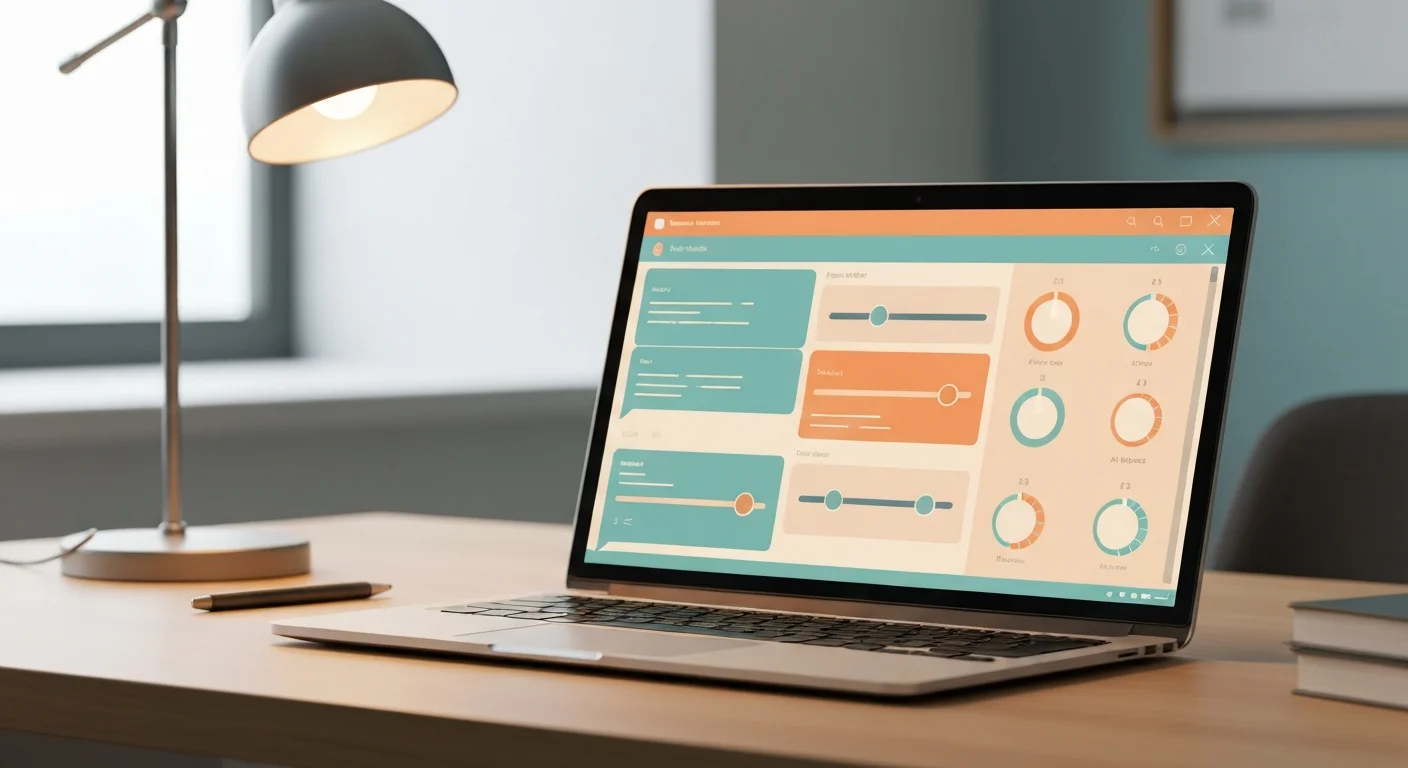
If you've ever wanted to know exactly how a model will behave before you bake it into an app, the OpenAI Playground is where you find out. It's a browser-based sandbox where you can pick a model, write a prompt, drag a few sliders, and watch the response appear in real time — no installation, no code, no API wrangling. Think of it as a workbench: a place to experiment, break things cheaply, and learn what actually moves the needle.
This beginner's guide walks you through the OpenAI Playground in 2026 — what each control does, how to read the output, and how to turn a working experiment into production code. By the end you'll know how to use the Playground the way professional builders do: as the fastest feedback loop in AI development.
What Is the OpenAI Playground?
The OpenAI Playground lives at platform.openai.com/playground and is part of the OpenAI developer platform (different from the consumer ChatGPT app). You sign in with an OpenAI account, and usage is billed against your API credits — typically fractions of a cent per experiment. If you've never used the API side before, OpenAI sometimes grants a small free credit to get started, though that's promotional and no longer guaranteed — in most cases you'll add a payment method and pay per token.
Why bother with the Playground instead of just chatting in ChatGPT? Three reasons:
- Control. You can adjust temperature, max tokens, system instructions, and which exact model version runs — none of which ChatGPT exposes.
- Reproducibility. You can set a seed and capture the exact request, so a prompt that works today works the same way next week.
- Portability. Every Playground session can be exported as ready-to-run code. What you tune here is what ships.
If you're still fuzzy on the underlying technology, it's worth a five-minute detour through what an LLM actually is before diving in — the Playground makes a lot more sense once you understand tokens and probabilities.
Getting Started with the OpenAI Playground
When you open the Playground you'll land in Chat mode (since 2025 also surfaced as the "Prompts" view, and still the default in 2026), which mirrors how most apps actually call the API. The screen has three zones:
- The conversation panel (center) — where you type messages and see responses.
- The system instructions box (top) — a persistent instruction that shapes every reply, e.g. "You are a concise technical writer. Answer in under 100 words."
- The configuration sidebar (right) — model picker and parameter sliders.
Start simple. Put a role in the system box, type a user message like "Explain recursion to a 12-year-old," and hit Submit. You'll get a response in a second or two. Now you have something to experiment with.
Picking a model
The model dropdown lists everything your account can access — the latest GPT family models, smaller fast variants, and reasoning-optimized options. As a beginner, here's the rule of thumb: start with a mid-tier general model, get your prompt working, then test whether a cheaper/faster model gives you "good enough" results. Many production apps over-pay by defaulting to the biggest model when a smaller one would do.
Understanding the Parameters
This is where the OpenAI Playground earns its keep. The sliders look intimidating; in practice you'll use two or three.
Temperature
Temperature controls randomness, from 0 to 2. At 0 the model picks the most probable next token every time — deterministic, repetitive, great for extraction, classification, or anything where you want the same answer twice. Around 0.7–1.0 you get natural, varied prose — good for writing, brainstorming, dialogue. Push past 1.2 and output gets creative but unstable. Try this: ask for a product tagline at temperature 0, then 1.5. The difference is immediate and intuitive.
Max tokens
This caps the length of the response (and, on some models, the reasoning budget). Set it too low and replies get truncated mid-sentence; too high and you pay for headroom you don't use. Watch the token counter — it's the single best habit for keeping costs predictable.
Top P, frequency penalty, presence penalty
- Top P is an alternative to temperature (sample from the top X% of probability mass). Adjust one or the other, not both.
- Frequency penalty discourages the model from repeating the same words — useful for long-form text that starts looping.
- Presence penalty nudges the model toward introducing new topics.
For 90% of beginner use, leave Top P at 1, both penalties at 0, and just play with temperature.
Iterating on Prompts in the Playground
The real workflow inside the OpenAI Playground is prompt iteration: change one thing, resubmit, compare. A few techniques that pay off fast:
- Move rules into the system message. "Always respond in JSON," "never apologize," "cite a source" — these belong up top, not buried in every user turn.
- Show, don't tell. Add one or two example exchanges directly into the conversation. Few-shot examples beat long explanations almost every time.
- Test the edge cases. Feed it empty input, gibberish, a hostile request. You want to discover the weird failures here, not in front of users.
- Use the seed parameter. Set a fixed seed and you can change a prompt and trust that any difference in output came from your edit, not random sampling.
If prompt-writing itself feels like guesswork, our guide on how to write better prompts and the free Prompt Engineering course give you a repeatable structure to bring into the Playground.
From Playground to Code
Here's the payoff. Once a prompt and parameter combo works, click "View code" in the top bar. The Playground generates a ready-to-paste snippet — Python, Node.js, curl — with your exact model, system message, messages array, temperature, and token limits already filled in. Drop in your API key and you have a working call.
This is why experienced developers treat the Playground as step one of every feature: you de-risk the AI behavior in a no-code sandbox, then write the integration. When you're ready to build something real around that snippet, the best free courses for building AI apps with APIs walk you through wiring it into an actual application — error handling, streaming, rate limits, the works.
A Quick Note on Cost and Plans
The Playground bills per token against your API account — separate from any ChatGPT Plus/Pro subscription. A few dollars of credit goes a long way for learning. If you're trying to figure out which OpenAI products you actually need, our breakdown of the ChatGPT plan tiers compared clears up the (genuinely confusing) overlap between the consumer app and the developer platform.
Conclusion
The OpenAI Playground turns "I wonder if the model can do this" into a five-minute experiment with a concrete answer — and a code snippet to match. Start in Chat mode, write a clear system instruction, play with temperature, iterate on your prompt with a fixed seed, and export the code when it works. That loop — experiment, measure, ship — is the foundation of building anything with LLMs.
Ready to go further? Pair your Playground practice with the free Prompt Engineering course on FreeAcademy.ai, then move on to building your first real AI app with the API. The best way to learn this stuff is to open the Playground in one tab and start tinkering — so go do that now.
Enjoyed this article?
Join The FreeAcademy Weekly
One practical AI email every Tuesday. New free courses, AI tips, and a short note from the founder.
Free forever. Unsubscribe anytime.
Related articles

How to Use ChatGPT Advanced Voice Mode: Beginner's Guide
Learn how to use ChatGPT Advanced Voice Mode with this complete beginner's guide. Discover setup steps, best use cases, and tips to get the most from it.

LLM Parameters Explained: Temperature, Top-P, Top-K & Max Tokens
LLM parameters explained for beginners. Learn how temperature, top-p, top-k, and max tokens shape AI output — with practical examples and tuning tips.
GPT-5.6 Sol vs Terra vs Luna: Which One for Each Task?
A task-based guide to OpenAI GPT-5.6 Sol, Terra, and Luna. Pick the right model for writing, coding, research, and speed, plus what changed vs GPT-5.5.