

How to Build an AI Invoice Reminder Assistant with n8n

Managing unpaid invoices can quickly become a repetitive task, especially for small businesses handling several customers. Checking due dates, identifying overdue payments, writing follow-up emails, and updating records manually takes time that could be spent on more important work.
In this tutorial, you'll build an AI Invoice Reminder Assistant with n8n that automates this process. The workflow checks invoice records in Google Sheets, identifies invoices that need a reminder, uses AI to create a polite and personalized message, sends it through Gmail, and updates the invoice record. Along the way, you'll also see what happens when an automation doesn't work as expected, including how a date-comparison problem got solved by replacing an IF node with a Code node. By the end, a beginner will understand how to build, test, troubleshoot, and improve a practical AI automation in n8n.
Understanding the Workflow
Before building the automation, it helps to understand what happens from start to finish. The workflow follows a simple sequence: Schedule Trigger → Google Sheets → Edit Fields → Code node (date check) → Gemini node → Gmail → Update Google Sheets.
- Schedule Trigger: Starts the workflow automatically at a set time, such as every morning.
- Google Sheets: Retrieves the invoice records, including customer details, invoice dates, due dates, and payment status.
- Code node (date check): Determines which invoices are overdue and need a reminder.
- Gemini node: Creates a polite, personalized payment reminder using the invoice information.
- Gmail: Sends the generated reminder directly to the customer.
- Update Google Sheets: Records that a reminder has been sent, helping prevent duplicate follow-ups.
The result is a workflow that moves an invoice from "needs attention" to "reminder sent" with minimal manual work. Here is how the complete workflow looks on the canvas:

Preparing Your Invoice Data
Before building the workflow, prepare your invoice information in a structured Google Sheet. Automation works best when data is consistent and each piece of information has its own column. For this workflow, your sheet should include:
- Customer Name
- Customer Email
- Invoice Number
- Invoice Date
- Due Date
- Amount
- Payment Status
- Reminder Sent
Keep the column names clear and use the same date format throughout the sheet. Avoid leaving important fields blank or mixing different formats, since that can cause problems when n8n processes the data.
Think of your spreadsheet as the workflow's source of truth. The cleaner and more consistent your data is, the easier it is for n8n to identify overdue invoices, generate accurate reminders, and update the correct records.

Building the Automation in n8n
Now that the invoice data is ready, it's time to build the automation. The workflow moves through five main stages: retrieve the invoices, identify which ones need a reminder, generate the email, send it, and update the spreadsheet.
Step 1: Connect Google Sheets to n8n
Start by adding a Schedule Trigger node. This lets the workflow run automatically at a specific time instead of requiring you to start it manually.
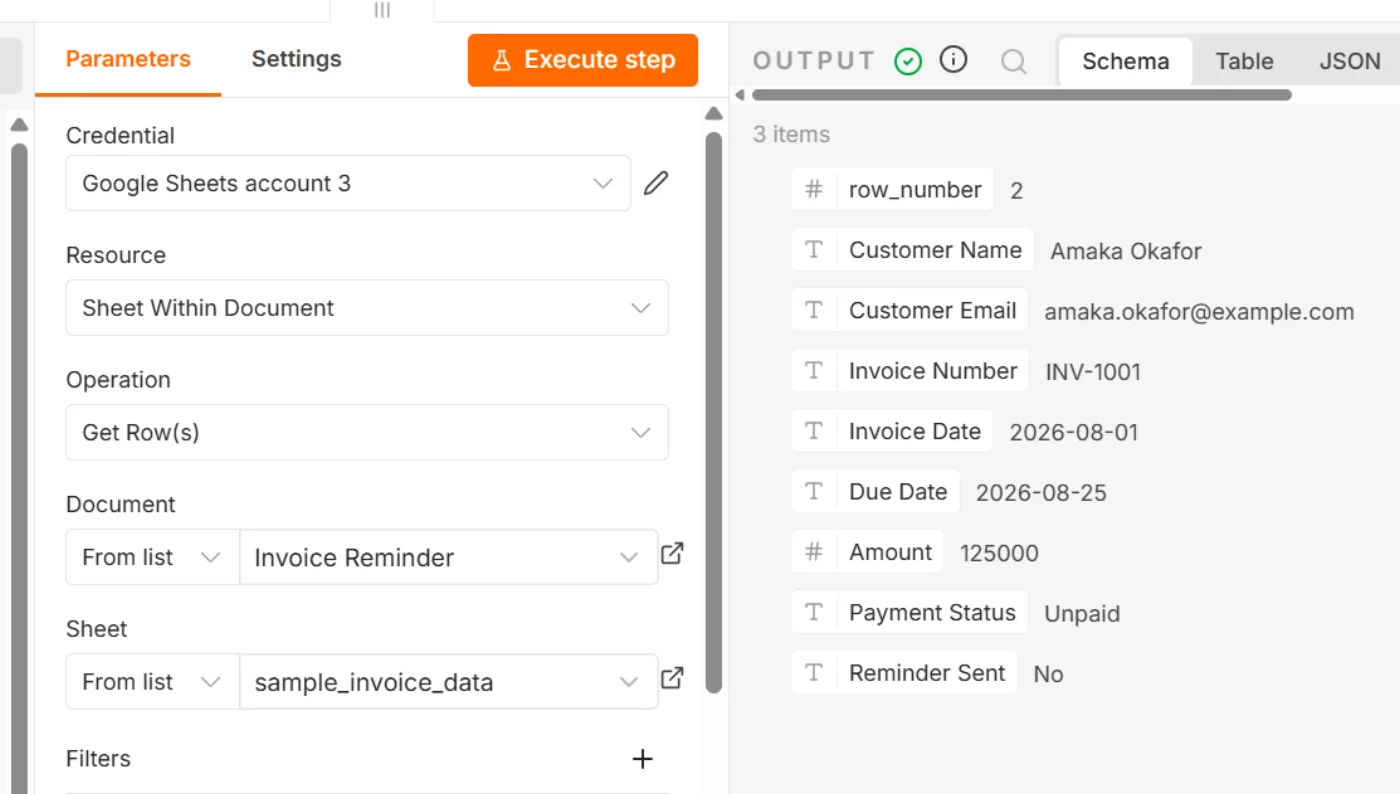
Next, add a Google Sheets node and connect it to your invoice spreadsheet. Configure it with the Get Row(s) operation to read the rows containing your invoice records. When the workflow runs, n8n retrieves the customer and invoice information from each row and passes it to the next stage.
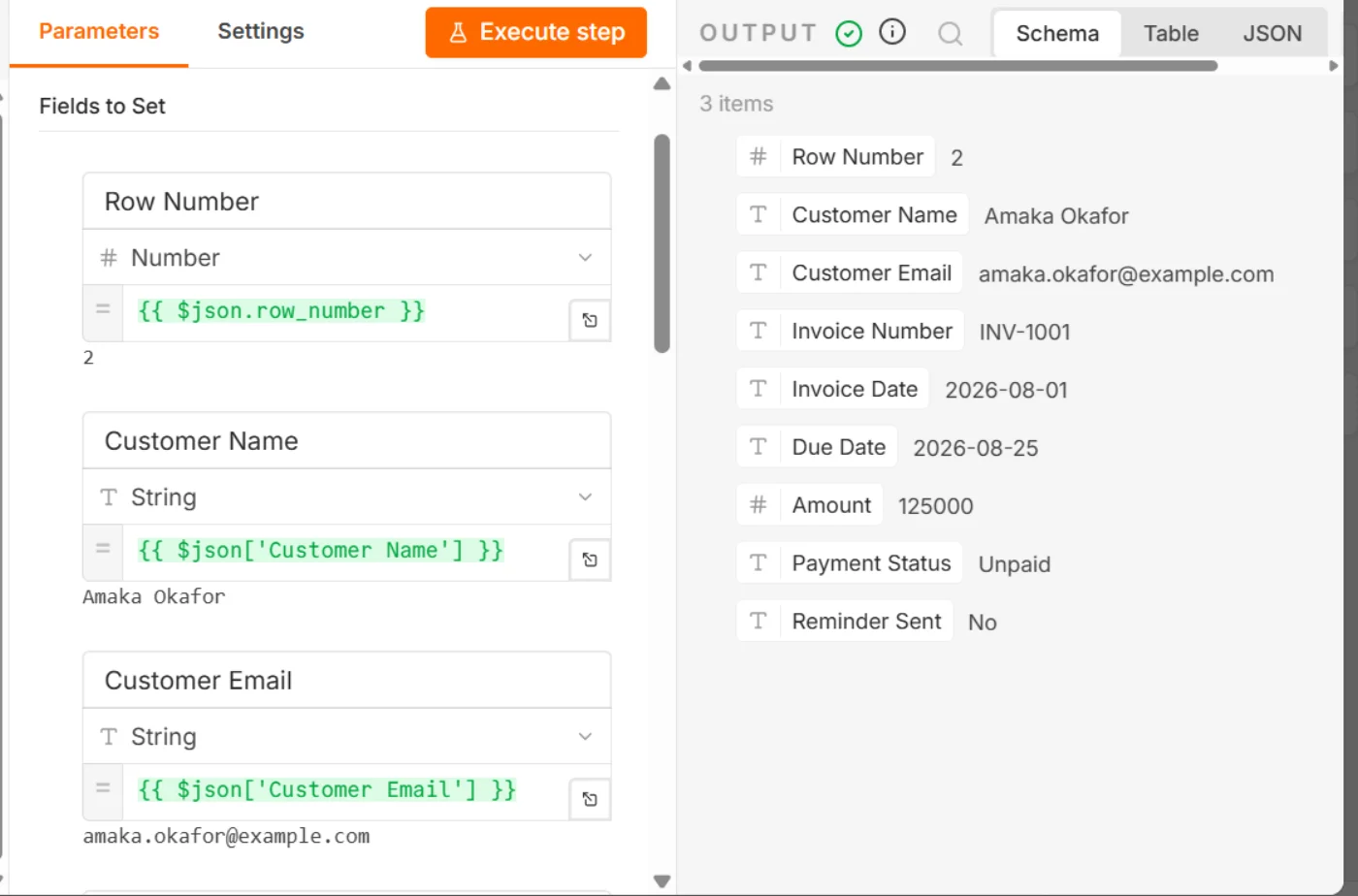
Add a Set node (labeled "Edit Fields") after Google Sheets to cleanly organize and standardize the invoice fields, especially the date values, before passing them to the logic that determines which invoices need a reminder.
Step 2: Identify Invoices That Need a Reminder
The workflow now needs to determine which invoices require action. The important information here is the Due Date and Payment Status. For example, an invoice should be considered for a reminder when its due date has passed and its payment status is still Unpaid. This is date-checking logic, so the first attempt used an IF node.
Here, the date comparison wasn't behaving reliably even though the IF node looked correct. n8n threw a type error because it found an empty string ("") where it expected a DateTime:
![n8n IF node error panel reading "Wrong type: '' is a string but was expecting a dateTime [condition 0, item 0]" with a Due Date "is before" comparison against the current time](/images/blog/ai-invoice-reminder-assistant-n8n-if-node-error.webp)
The problem was with how the date value was being formatted and interpreted by n8n. Instead of fighting the IF node's date conversion, the fix was to replace it with a Code node and handle the date comparison explicitly:
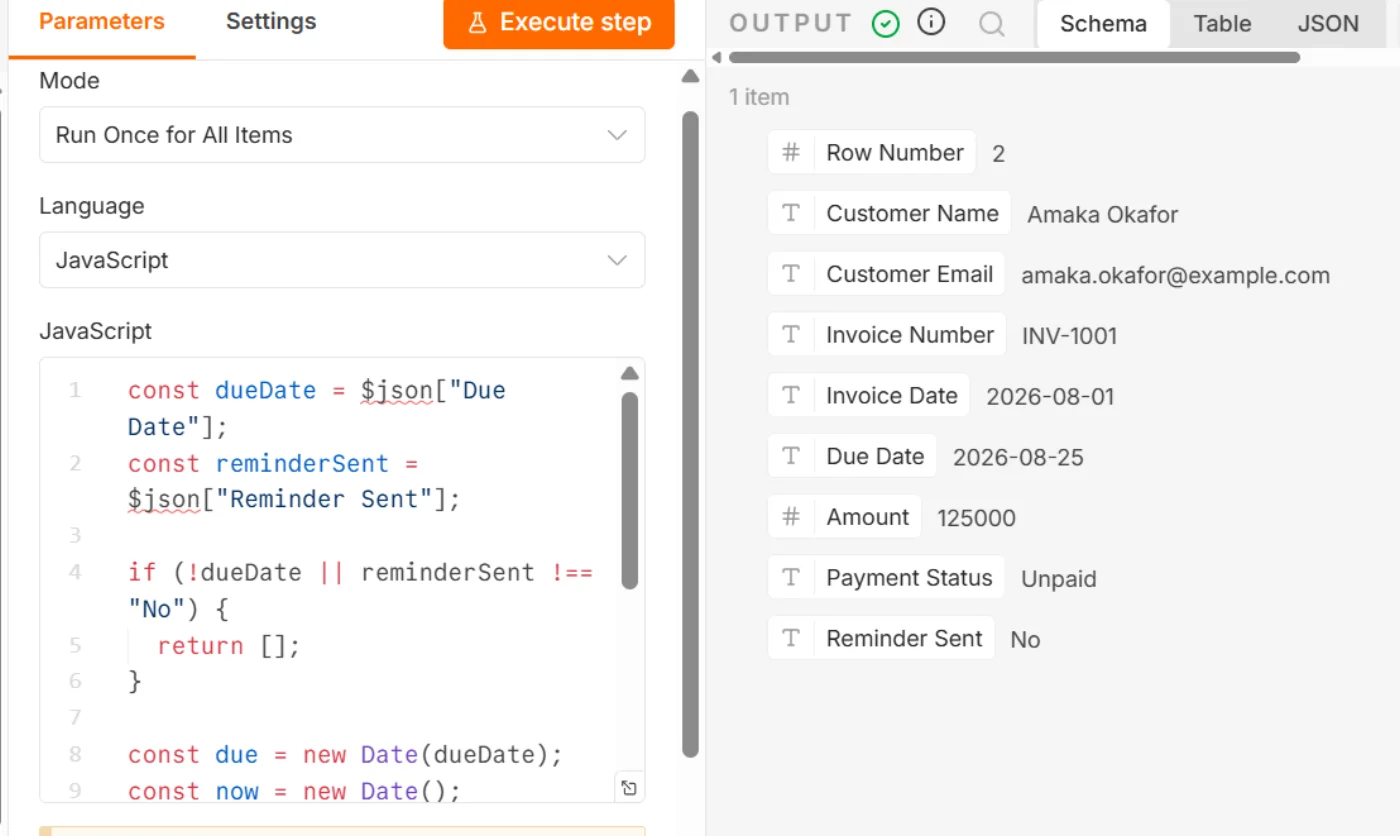
Here's the code as text:
const dueDate = $json["Due Date"];
const reminderSent = $json["Reminder Sent"];

if (!dueDate || reminderSent !== "No") {
  return [];
}

const due = new Date(dueDate);
const now = new Date();

if (isNaN(due.getTime())) {
  return [];
}

if (due <= now) {
  return [$input.item];
}

return [];
One setting matters here: the Mode dropdown must be Run Once for Each Item, not Run Once for All Items. The code above uses single-item idioms ($json, $input.item), which only make sense per row. In "Run Once for All Items" mode, $json resolves to just the first row, so the workflow would silently check one invoice and skip every other row in the sheet, which defeats the point of a workflow meant to handle several customers.
This node checks two things: that the invoice hasn't already been reminded (Reminder Sent is still "No") and that the due date, once safely parsed, is on or before right now. Only invoices that pass both checks continue to the next node.
Step 3: Generate the Reminder with AI
Once an invoice qualifies, its details go to the Gemini node. Set up your credentials, choose a message model (this workflow uses Gemini 3 Flash Preview), and provide the AI with the relevant information, including the customer's name, invoice number, amount, and due date. The prompt instructs the AI to write a short, professional, and polite payment reminder. This lets each email be personalized rather than sending every customer the exact same message.
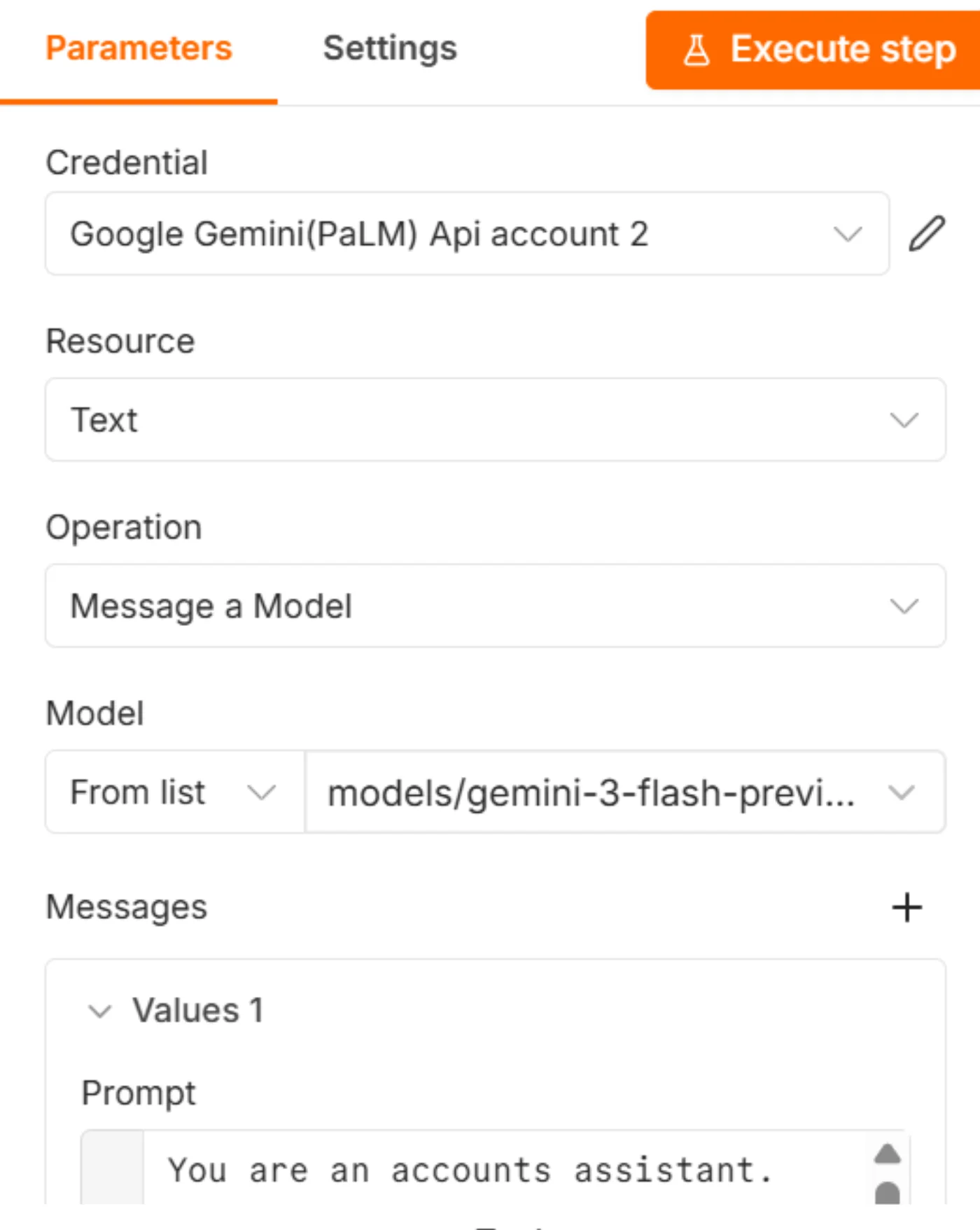
The complete AI prompt, as text:
You are an accounts assistant.

Write a friendly invoice reminder.

Customer Name:
{{ $json['Customer Name'] }}

Invoice Number:
{{ $json['Invoice Number'] }}

Amount:
{{$json.Amount}}

Due Date:
{{$json["Due Date"]}}

Keep it under 120 words.

Be polite.

End with:
"If you've already made payment, kindly ignore this email."
Step 4: Send the Email with Gmail
Connect the Gemini node to a Gmail node. Set up your credentials and map the customer's email address to the recipient field, then use the AI-generated message as the email body. Because the whole point of this workflow is a reminder personalized per customer, both the recipient and the subject line should be dynamic rather than hardcoded to one invoice: map To from the customer's email that came through the Code node, and build the Subject from the real invoice number instead of typing one invoice number into every email.
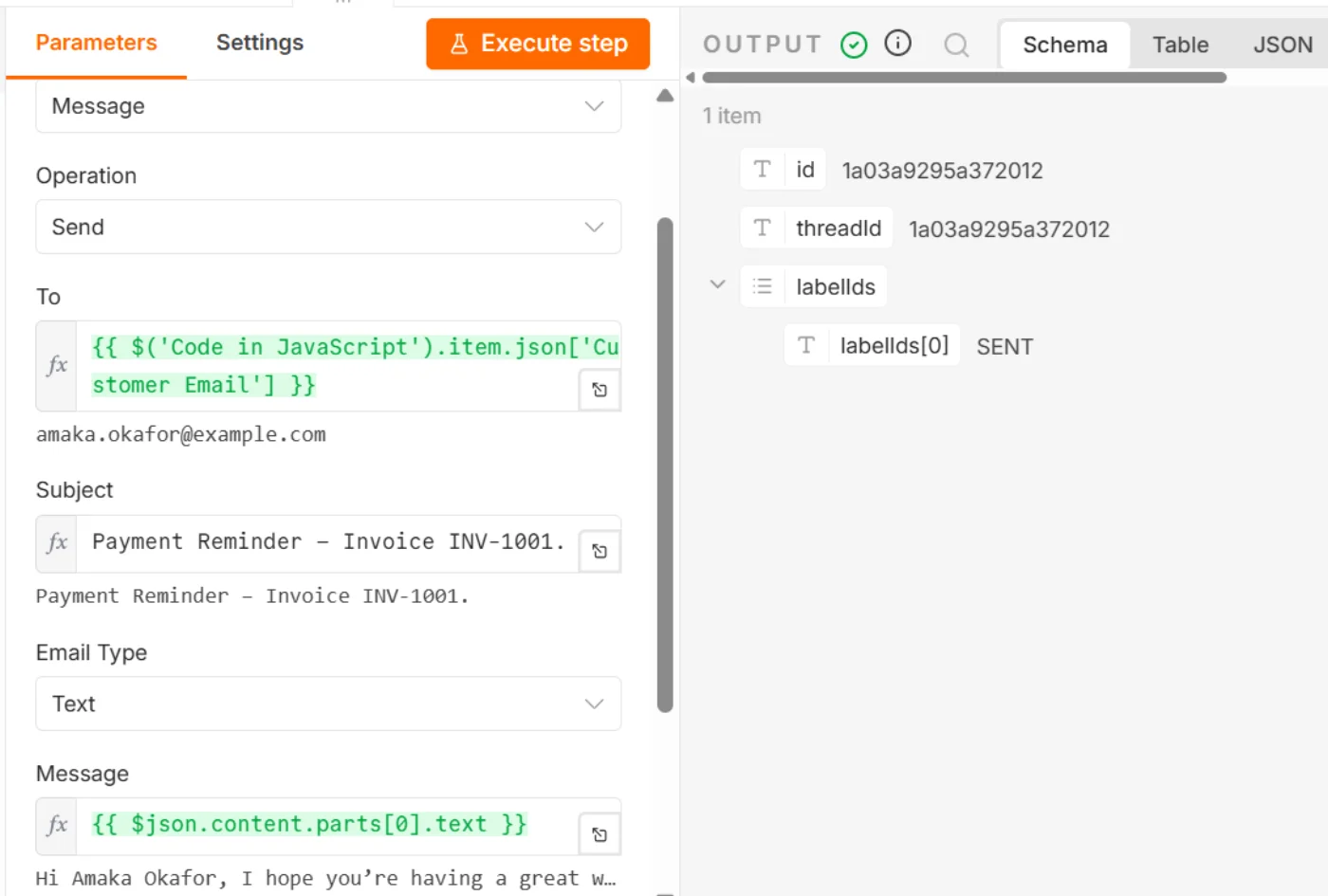
Here is the complete email content as text, generated for a sample invoice:
Payment Reminder – Invoice INV-1001
Hi Amaka Okafor,
I hope you're having a great week. This is a gentle reminder that invoice #INV-1001 for 125,000 is due for payment on 2026-08-25. We would appreciate it if you could settle this by the due date.
Please let me know if you have any questions regarding the invoice or if you require another copy. Thank you for your continued business!
Best regards, Aguda Mandi, Accounts Assistant.
If you've already made payment, kindly ignore this email.
Step 5: Update the Invoice Record
After Gmail successfully sends the reminder, connect another Google Sheets node to update the corresponding invoice row using the Append or Update Row operation. Keep in mind that the two Google Sheets nodes in this workflow use different operations: the first uses Get Row(s) to find the invoice record that needs a reminder, and the second uses Append or Update Row to update that invoice record with the latest event, such as the reminder status.
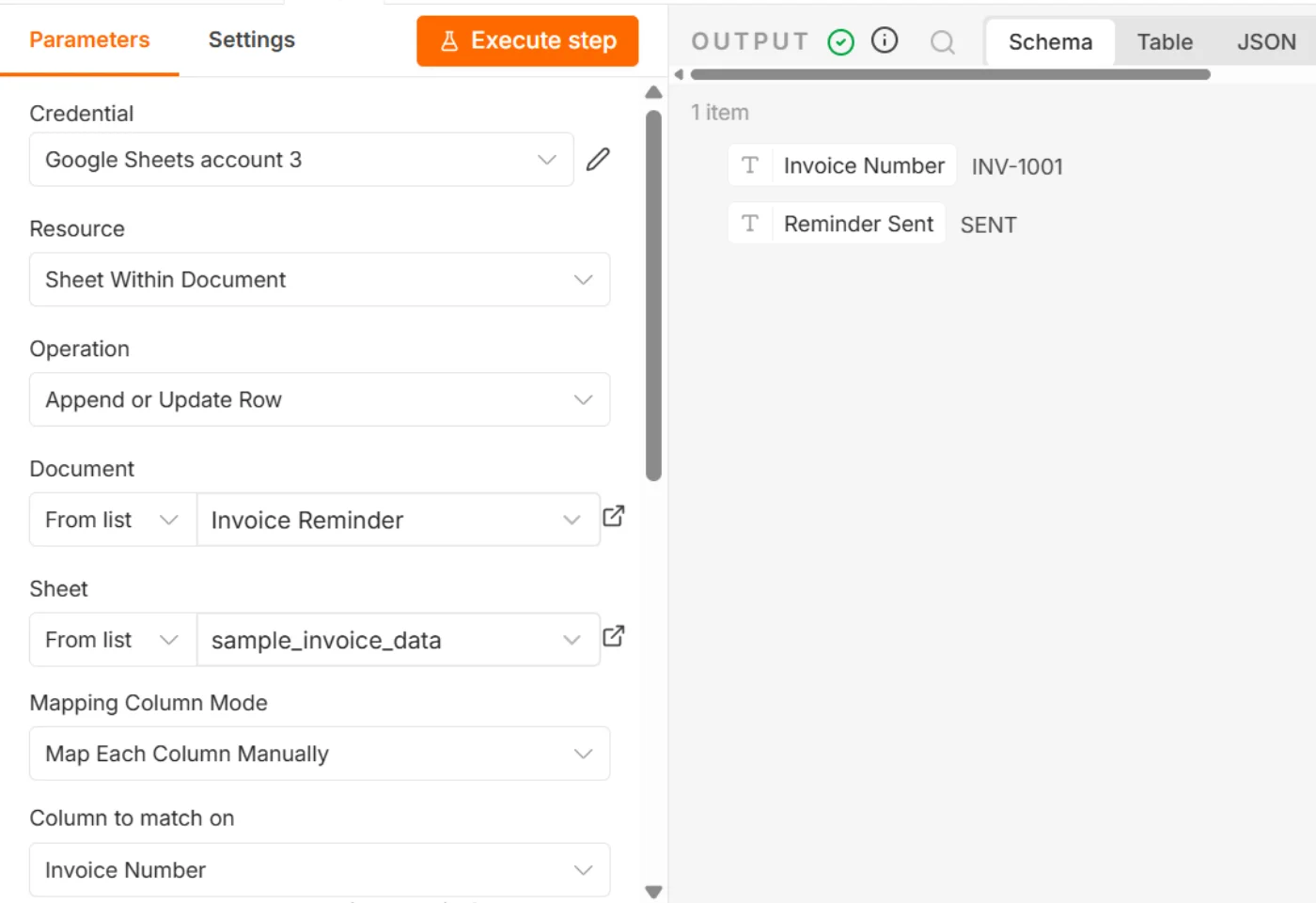
After selecting the invoice document and the specific sheet, there's one more important setting: Column to Match On. Select Invoice Number, because it uniquely identifies each invoice and ensures the correct record is updated. Then map Reminder Sent to a literal Sent value.
Now the invoice record shows the Reminder Sent status updated to SENT, because the reminder email has been sent to the customer:

This final step is important because the spreadsheet now reflects what the automation has already done, helping prevent the same invoice from being unnecessarily reminded again.
A Real-World Troubleshooting Lesson: From IF Node to Code Node
This is where the workflow stopped being a simple "follow the steps" exercise and became a real automation problem. The initial approach was to use an IF node to check whether an invoice's Due Date had passed. The logic itself was straightforward: compare the invoice date against the current date and allow overdue invoices to continue.
However, the date comparison wasn't giving the reliable result expected. The issue came down to how the date values were being formatted and interpreted by n8n. Even though the values looked like valid dates in Google Sheets, the comparison did not consistently behave as expected.
Rather than keep adjusting the IF node and guessing at the problem, the date-checking logic got replaced with a Code node. This allowed explicit handling of the date values, normalizing them and performing the comparison in a more controlled way.
The important lesson isn't that IF nodes are bad for date comparisons. It's that real-world automation rarely goes perfectly the first time. When a node doesn't behave as expected, understanding the data, testing assumptions, and adapting your approach is part of building reliable workflows.
Testing the Workflow
Before relying on the automation, test it with different invoice scenarios:
- Start with an overdue, unpaid invoice and confirm that it passes the date check and continues through the workflow.
- Test a non-overdue invoice to make sure it's correctly excluded.
- Review the message generated by the Gemini node. Check that the customer's name, invoice number, amount, and due date are accurate and that the tone is polite and professional.
- Run the workflow and confirm that Gmail sends the reminder to the correct email address.
- Check the Google Sheet and verify that the corresponding invoice record has been updated, such as
Reminder Sentchanging from "No" to "Sent."
Beginners may run into issues with date formatting, especially when dates from Google Sheets are interpreted differently by n8n. Incorrect field mapping can also cause the wrong customer details, invoice information, or email address to be passed between nodes. Test each stage before moving to the next.
The Finished Automation
Once everything is connected and tested, the workflow can run automatically. At the scheduled time, n8n retrieves the invoice records from Google Sheets, checks the dates and payment status, and identifies invoices that need a reminder. The Gemini node creates a personalized payment message, Gmail sends it to the customer, and the spreadsheet is updated to record that the reminder was sent.
The business owner no longer needs to manually check due dates, write individual reminder emails, send them, or update the invoice records. The automation handles these repetitive tasks in the background.

The Workflow JSON (Import and Customize)
Here's the workflow JSON for this build. The Google Sheet document ID, credential names, and credential IDs below are placeholders — swap them for your own before importing.
{
  "nodes": [
    {
      "parameters": {
        "documentId": {
          "__rl": true,
          "value": "YOUR_GOOGLE_SHEET_ID",
          "mode": "list",
          "cachedResultName": "Invoice Reminder",
          "cachedResultUrl": "https://docs.google.com/spreadsheets/d/YOUR_GOOGLE_SHEET_ID/edit?usp=drivesdk"
        },
        "sheetName": {
          "__rl": true,
          "value": 1113883677,
          "mode": "list",
          "cachedResultName": "sample_invoice_data",
          "cachedResultUrl": "https://docs.google.com/spreadsheets/d/YOUR_GOOGLE_SHEET_ID/edit#gid=1113883677"
        },
        "options": {}
      },
      "type": "n8n-nodes-base.googleSheets",
      "typeVersion": 4.7,
      "position": [112, 0],
      "id": "f1d9c810-c69b-4e6a-bbb5-05d69d17c029",
      "name": "Get row(s) in sheet",
      "credentials": {
        "googleSheetsOAuth2Api": {
          "id": "YOUR_CREDENTIAL_ID",
          "name": "Your Google Sheets account"
        }
      }
    },
    {
      "parameters": {
        "rule": {
          "interval": [
            {
              "triggerAtHour": 8
            }
          ]
        }
      },
      "type": "n8n-nodes-base.scheduleTrigger",
      "typeVersion": 1.3,
      "position": [-32, 0],
      "id": "7f9bff2c-f763-4d0a-afbd-180cff3b7948",
      "name": "Schedule Trigger"
    },
    {
      "parameters": {
        "assignments": {
          "assignments": [
            {
              "id": "0ee06448-510d-428e-91ed-3fe0f1077c5f",
              "name": "Row Number",
              "value": "={{ $json.row_number }}",
              "type": "number"
            },
            {
              "id": "099fd9f7-952c-42d9-816e-a20a9130ad30",
              "name": "Customer Name",
              "value": "={{ $json['Customer Name'] }}",
              "type": "string"
            },
            {
              "id": "e9f93d88-1527-425b-a1f1-e0d22a984cc7",
              "name": "Customer Email",
              "value": "={{ $json['Customer Email'] }}",
              "type": "string"
            },
            {
              "id": "bc734ae6-91e4-4c42-97c3-caa7e179b6cf",
              "name": "Invoice Number",
              "value": "={{ $json['Invoice Number'] }}",
              "type": "string"
            },
            {
              "id": "bbdd50a0-1dca-4158-aa63-b37ce905ea67",
              "name": "Invoice Date",
              "value": "={{ $json['Invoice Date'] }}",
              "type": "string"
            },
            {
              "id": "6136dfb0-2715-4f41-ba4f-ff9e479a5624",
              "name": "Due Date",
              "value": "={{ $json['Due Date'] }}",
              "type": "string"
            },
            {
              "id": "8742fb4b-5890-48c9-be5c-f3764f1c45b9",
              "name": "Amount",
              "value": "={{ $json.Amount }}",
              "type": "number"
            },
            {
              "id": "d430c6b3-233b-4fee-802a-a50025eab1d7",
              "name": "Payment Status",
              "value": "={{ $json['Payment Status'] }}",
              "type": "string"
            },
            {
              "id": "ab7b63c1-0d57-4443-9935-3d77ee0648e3",
              "name": "Reminder Sent",
              "value": "={{ $json['Reminder Sent'] }}",
              "type": "string"
            }
          ]
        },
        "options": {}
      },
      "type": "n8n-nodes-base.set",
      "typeVersion": 3.5,
      "position": [288, 0],
      "id": "19965fca-def3-4e4f-b53d-3dddcc2f475f",
      "name": "Edit Fields"
    },
    {
      "parameters": {
        "jsCode": "const dueDate = $json[\"Due Date\"];\nconst reminderSent = $json[\"Reminder Sent\"];\n\nif (!dueDate || reminderSent !== \"No\") {\n  return [];\n}\n\nconst due = new Date(dueDate);\nconst now = new Date();\n\nif (isNaN(due.getTime())) {\n  return [];\n}\n\nif (due <= now) {\n  return [$input.item];\n}\n\nreturn [];"
      },
      "type": "n8n-nodes-base.code",
      "typeVersion": 2,
      "position": [448, 0],
      "id": "b0a61083-5165-4dd3-a67d-eace4fedd0a1",
      "name": "Code in JavaScript"
    },
    {
      "parameters": {
        "sendTo": "={{ $('Code in JavaScript').item.json['Customer Email'] }}",
        "subject": "=Payment Reminder – Invoice {{ $('Code in JavaScript').item.json['Invoice Number'] }}",
        "emailType": "text",
        "message": "={{ $json.content.parts[0].text }}",
        "options": {
          "appendAttribution": false
        }
      },
      "type": "n8n-nodes-base.gmail",
      "typeVersion": 2.2,
      "position": [848, 0],
      "id": "389fce82-0570-4d5e-a630-e1ee071522ae",
      "name": "Send a message",
      "webhookId": "009f3753-5a87-44fe-b047-3ef02eb62a88",
      "credentials": {
        "gmailOAuth2": {
          "id": "YOUR_CREDENTIAL_ID",
          "name": "Your Gmail account"
        }
      }
    },
    {
      "parameters": {
        "operation": "appendOrUpdate",
        "documentId": {
          "__rl": true,
          "value": "YOUR_GOOGLE_SHEET_ID",
          "mode": "list",
          "cachedResultName": "Invoice Reminder",
          "cachedResultUrl": "https://docs.google.com/spreadsheets/d/YOUR_GOOGLE_SHEET_ID/edit?usp=drivesdk"
        },
        "sheetName": {
          "__rl": true,
          "value": 1113883677,
          "mode": "list",
          "cachedResultName": "sample_invoice_data",
          "cachedResultUrl": "https://docs.google.com/spreadsheets/d/YOUR_GOOGLE_SHEET_ID/edit#gid=1113883677"
        },
        "columns": {
          "mappingMode": "defineBelow",
          "value": {
            "Invoice Number": "={{ $('Code in JavaScript').item.json['Invoice Number'] }}",
            "Reminder Sent": "Sent"
          },
          "matchingColumns": ["Invoice Number"],
          "schema": [
            {
              "id": "Customer Name",
              "displayName": "Customer Name",
              "required": false,
              "defaultMatch": false,
              "display": true,
              "type": "string",
              "canBeUsedToMatch": true,
              "removed": true
            },
            {
              "id": "Customer Email",
              "displayName": "Customer Email",
              "required": false,
              "defaultMatch": false,
              "display": true,
              "type": "string",
              "canBeUsedToMatch": true,
              "removed": true
            },
            {
              "id": "Invoice Number",
              "displayName": "Invoice Number",
              "required": false,
              "defaultMatch": false,
              "display": true,
              "type": "string",
              "canBeUsedToMatch": true,
              "removed": false
            },
            {
              "id": "Invoice Date",
              "displayName": "Invoice Date",
              "required": false,
              "defaultMatch": false,
              "display": true,
              "type": "string",
              "canBeUsedToMatch": true,
              "removed": true
            },
            {
              "id": "Due Date",
              "displayName": "Due Date",
              "required": false,
              "defaultMatch": false,
              "display": true,
              "type": "string",
              "canBeUsedToMatch": true,
              "removed": true
            },
            {
              "id": "Amount",
              "displayName": "Amount",
              "required": false,
              "defaultMatch": false,
              "display": true,
              "type": "string",
              "canBeUsedToMatch": true,
              "removed": true
            },
            {
              "id": "Payment Status",
              "displayName": "Payment Status",
              "required": false,
              "defaultMatch": false,
              "display": true,
              "type": "string",
              "canBeUsedToMatch": true,
              "removed": true
            },
            {
              "id": "Reminder Sent",
              "displayName": "Reminder Sent",
              "required": false,
              "defaultMatch": false,
              "display": true,
              "type": "string",
              "canBeUsedToMatch": true
            }
          ],
          "attemptToConvertTypes": false,
          "convertFieldsToString": false
        },
        "options": {}
      },
      "type": "n8n-nodes-base.googleSheets",
      "typeVersion": 4.7,
      "position": [1008, 0],
      "id": "614d27b9-4dfb-459d-9fc8-f0af323704f4",
      "name": "Append or update row in sheet",
      "credentials": {
        "googleSheetsOAuth2Api": {
          "id": "YOUR_CREDENTIAL_ID",
          "name": "Your Google Sheets account"
        }
      }
    },
    {
      "parameters": {
        "modelId": {
          "__rl": true,
          "mode": "list",
          "value": "models/gemini-3-flash-preview"
        },
        "messages": {
          "values": [
            {
              "content": "=You are an accounts assistant.\n\nWrite a friendly invoice reminder.\n\nCustomer Name:\n{{ $json['Customer Name'] }}\n\nInvoice Number:\n{{ $json['Invoice Number'] }}\n\nAmount:\n{{$json.Amount}}\n\nDue Date:\n{{$json[\"Due Date\"]}}\n\nKeep it under 120 words.\n\nBe polite.\n\nEnd with:\n\n\"If you've already made payment, kindly ignore this email.\""
            }
          ]
        },
        "builtInTools": {},
        "options": {}
      },
      "type": "@n8n/n8n-nodes-langchain.googleGemini",
      "typeVersion": 1.2,
      "position": [576, 0],
      "id": "b3dbd283-371b-448a-abae-036a1bd115c3",
      "name": "Message a model1",
      "credentials": {
        "googlePalmApi": {
          "id": "YOUR_CREDENTIAL_ID",
          "name": "Your Google Gemini (PaLM) API account"
        }
      }
    }
  ],
  "connections": {
    "Get row(s) in sheet": {
      "main": [
        [
          {
            "node": "Edit Fields",
            "type": "main",
            "index": 0
          }
        ]
      ]
    },
    "Schedule Trigger": {
      "main": [
        [
          {
            "node": "Get row(s) in sheet",
            "type": "main",
            "index": 0
          }
        ]
      ]
    },
    "Edit Fields": {
      "main": [
        [
          {
            "node": "Code in JavaScript",
            "type": "main",
            "index": 0
          }
        ]
      ]
    },
    "Code in JavaScript": {
      "main": [
        [
          {
            "node": "Message a model1",
            "type": "main",
            "index": 0
          }
        ]
      ]
    },
    "Send a message": {
      "main": [
        [
          {
            "node": "Append or update row in sheet",
            "type": "main",
            "index": 0
          }
        ]
      ]
    },
    "Message a model1": {
      "main": [
        [
          {
            "node": "Send a message",
            "type": "main",
            "index": 0
          }
        ]
      ]
    }
  },
  "pinData": {},
  "meta": {
    "templateCredsSetupCompleted": true,
    "instanceId": "YOUR_INSTANCE_ID"
  }
}
To use it:
- Add your own credentials. The workflow uses services such as Google Sheets, Gmail, and Google Gemini. Before running it, connect your own accounts and credentials in n8n. Don't use or share someone else's credentials.
- Use your own data and update the fields. Import the JSON into n8n, then connect it to your own Google Sheet. Make sure your sheet uses the same column names as the workflow, or update the relevant field mappings to match your own data.
- Test the workflow before turning it on. Run it with a test invoice first and check that the due-date check, AI-generated reminder, email, and Google Sheets update all work correctly.
- Once everything looks right, activate the workflow for your real invoices.
Ideas for Expanding the Workflow
This basic automation can grow with the business:
- Introduce multiple reminder stages, such as a friendly reminder before the due date, a follow-up after seven days, and a final overdue notice.
- For businesses that want more control, add a human approval step so someone can review the AI-generated message before it's sent.
- Expand beyond Gmail by adding channels such as Slack, Microsoft Teams, or SMS for internal notifications or customer follow-ups.
The goal is to add useful functionality without making the workflow unnecessarily complicated.
Key Takeaways
This project demonstrates that you don't need to build a complicated system to create useful AI automation. As a beginner, the most important lesson is to start with a real, repetitive business problem and solve it one step at a time. The invoice reminder workflow combines simple tools: Google Sheets, n8n, AI, and Gmail, to remove a task that would otherwise require repeated manual effort.
You should also expect some troubleshooting along the way. Reliable automation comes from testing your data, checking how each node behaves, and adapting when something doesn't work as expected. Start simple, solve a real problem, test thoroughly, and only add complexity when it provides genuine value.

About the author
Queen Ikwuji
AI Automation Consultant & Engineer, n8n Specialist
I build practical AI-powered systems that help businesses eliminate repetitive work and streamline their processes.
I also teach beginners how to build and understand AI automation.
Enjoyed this article?
Join The FreeAcademy Weekly
One practical AI email every Tuesday. New free courses, AI tips, and a short note from the founder.
Free forever. Unsubscribe anytime.
Related articles
Building a Production-Grade AI Trends Pipeline in n8n: What Actually Breaks
A field guide to building a reliable AI trends pipeline in n8n across eight sources: the failures that actually happen in production, and the fixes that made it survivable.

Best Free AI Automation Courses 2026: Top 10 Picks
Discover the best free AI automation courses 2026 has to offer. Learn Make, Zapier, n8n, and AI agents with hands-on tutorials from top platforms.
AI Automation with Make, Zapier, and n8n: A Beginner's Complete Guide (2026)
Learn how to automate repetitive tasks with AI using Make, Zapier, and n8n. Step-by-step guide to building no-code AI workflows that save hours every week.