
How to Build Your First MCP Server: A Step-by-Step Guide

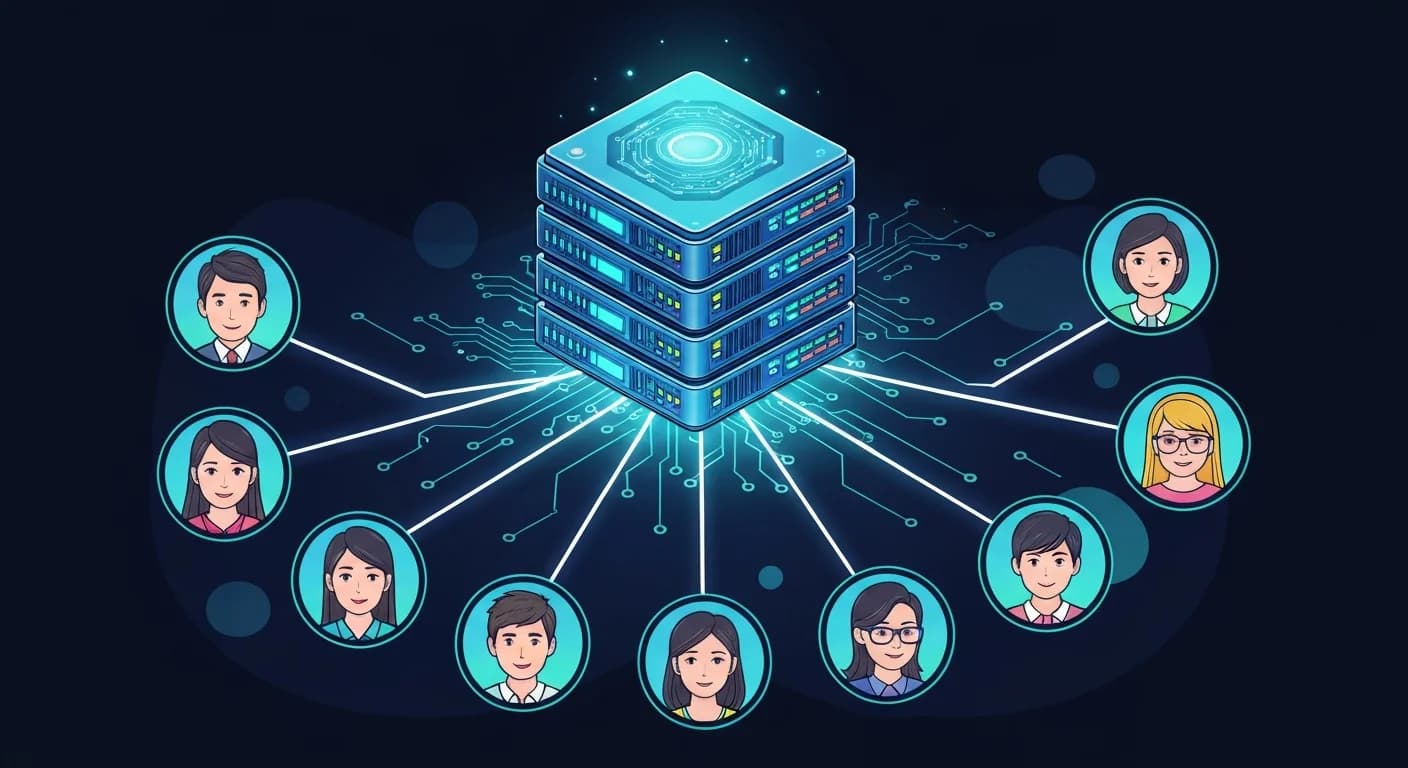
The Model Context Protocol (MCP) is rapidly becoming the standard way for AI assistants to interact with external tools and data sources. If you've ever wanted to give an AI model the ability to query your database, call an API, or perform custom operations, building an MCP server is the way to do it.
In this tutorial, you'll build your first MCP server from scratch using TypeScript. By the end, you'll have a working server that exposes custom tools to any MCP-compatible AI client.
What Is an MCP Server?
An MCP server is a lightweight program that exposes tools, resources, and prompts to AI assistants through a standardized protocol. Think of it as a bridge between an AI model and the outside world.
When you build an MCP server, you define capabilities that AI assistants can discover and invoke. The AI decides when and how to use your tools based on the user's request — you just provide the interface.
Here's why this matters: instead of building custom integrations for every AI platform, you build one MCP server and it works with Claude, ChatGPT, and any other client that supports the protocol.
Prerequisites
Before you start, make sure you have:
- Node.js 18+ installed on your machine
- TypeScript basics (you don't need to be an expert)
- A code editor like VS Code
- A terminal or command line
Step 1: Set Up Your Project
Create a new directory and initialize your project:
mkdir my-mcp-server
cd my-mcp-server
npm init -y
npm install @modelcontextprotocol/sdk zod
npm install -D typescript @types/node
The @modelcontextprotocol/sdk package provides the core framework for building MCP servers. zod handles input validation for your tools.
Next, create a tsconfig.json:
{
  "compilerOptions": {
    "target": "ES2022",
    "module": "Node16",
    "moduleResolution": "Node16",
    "outDir": "./dist",
    "rootDir": "./src",
    "strict": true,
    "esModuleInterop": true,
    "skipLibCheck": true
  },
  "include": ["src/**/*"]
}
Step 2: Create Your Server Entry Point
Create src/index.ts with the basic server setup:
import { McpServer } from "@modelcontextprotocol/sdk/server/mcp.js";
import { StdioServerTransport } from "@modelcontextprotocol/sdk/server/stdio.js";
import { z } from "zod";

const server = new McpServer({
  name: "my-first-server",
  version: "1.0.0",
});
This creates an MCP server instance with a name and version. The AI client uses this information to identify your server during the connection handshake.
Step 3: Define Your First Tool
Tools are the most common capability you'll add to an MCP server. Let's create a simple tool that fetches the current weather for a given city:
server.tool(
  "get-weather",
  "Get the current weather for a city",
  {
    city: z.string().describe("The city name to look up"),
    units: z
      .enum(["celsius", "fahrenheit"])
      .optional()
      .default("celsius")
      .describe("Temperature units"),
  },
  async ({ city, units }) => {
    // In production, you'd call a real weather API here
    const response = await fetch(
      `https://wttr.in/${encodeURIComponent(city)}?format=j1`
    );
    const data = await response.json();
    const tempC = data.current_condition[0].temp_C;
    const tempF = data.current_condition[0].temp_F;
    const description = data.current_condition[0].weatherDesc[0].value;

    const temp = units === "fahrenheit" ? `${tempF}°F` : `${tempC}°C`;

    return {
      content: [
        {
          type: "text",
          text: `Weather in ${city}: ${temp}, ${description}`,
        },
      ],
    };
  }
);
Let's break down what's happening:
- First argument: the tool name that AI clients will reference
- Second argument: a human-readable description the AI uses to decide when to call this tool
- Third argument: a Zod schema defining the input parameters
- Fourth argument: the async handler function that runs when the tool is invoked
The handler must return an object with a content array. Each item can be text, image, or resource type.
Step 4: Add a Second Tool
Let's add a more practical tool — one that performs a calculation:
server.tool(
  "calculate",
  "Evaluate a mathematical expression",
  {
    expression: z.string().describe("A math expression like '2 + 2' or 'sqrt(16)'"),
  },
  async ({ expression }) => {
    try {
      // Using Function constructor for safe math evaluation
      const sanitized = expression.replace(/[^0-9+\-*/().\s]/g, "");
      const result = new Function(`return ${sanitized}`)();

      return {
        content: [
          {
            type: "text",
            text: `${expression} = ${result}`,
          },
        ],
      };
    } catch {
      return {
        content: [
          {
            type: "text",
            text: `Error: Could not evaluate "${expression}"`,
          },
        ],
        isError: true,
      };
    }
  }
);
Notice the isError: true flag in the error case. This tells the AI client that something went wrong so it can communicate the failure appropriately to the user.
Step 5: Connect the Transport and Start
Add the startup code at the bottom of your file:
async function main() {
  const transport = new StdioServerTransport();
  await server.connect(transport);
  console.error("MCP server running on stdio");
}

main().catch(console.error);
MCP servers communicate over stdio (standard input/output) by default. The AI client launches your server as a subprocess and sends JSON-RPC messages through stdin/stdout. That's why the log message uses console.error — stdout is reserved for protocol messages.
Step 6: Build and Test
Add build scripts to your package.json:
{
  "scripts": {
    "build": "tsc",
    "start": "node dist/index.js"
  }
}
Build the project:
npm run build
Testing with the MCP Inspector
The fastest way to test your server is with the MCP Inspector:
npx @modelcontextprotocol/inspector node dist/index.js
This opens a web UI where you can see your registered tools, send test requests, and inspect the JSON-RPC messages flowing between client and server.
Step 7: Connect to an AI Client
To use your MCP server with Claude Desktop or another compatible client, add it to the client's MCP configuration. For Claude Desktop, edit your config file and add:
{
  "mcpServers": {
    "my-first-server": {
      "command": "node",
      "args": ["/absolute/path/to/my-mcp-server/dist/index.js"]
    }
  }
}
Restart the client, and your tools will be available for the AI to use.
Beyond Tools: Resources and Prompts
While tools are the most common capability, MCP servers can also expose:
- Resources: Read-only data sources the AI can access, like files, database records, or API responses. These appear as context the AI can pull in when needed.
- Prompts: Reusable prompt templates that help users interact with your server's capabilities in predefined ways.
As your MCP server grows, combining these three primitives lets you build rich, interactive integrations.
Common Pitfalls to Avoid
- Don't log to stdout — use
console.errorfor debugging. Stdout is exclusively for MCP protocol messages. - Always validate inputs — Zod schemas protect your handler from unexpected data.
- Keep tools focused — one tool should do one thing well. It's better to have five small tools than one giant tool that tries to handle everything.
- Write clear descriptions — the AI relies on your tool descriptions to decide when to use them. Vague descriptions lead to poor tool selection.
Conclusion
You've just built a working MCP server with two custom tools. From here, the possibilities are vast — you can connect databases, wrap REST APIs, integrate with local file systems, or build entire workflow automation servers.
The MCP ecosystem is growing fast, and knowing how to build MCP servers puts you at the forefront of the AI tooling revolution. Start with a simple use case that solves a real problem for you, and iterate from there.
Ready to go deeper? Explore the official MCP documentation for advanced patterns like server-sent events, authentication, and remote server deployment. FreeAcademy's free MCP Fundamentals course covers the full protocol — tools, resources, prompts, and real-world integrations — in a structured format.
Enjoyed this article?
Join The FreeAcademy Weekly
One practical AI email every Tuesday. New free courses, AI tips, and a short note from the founder.
Free forever. Unsubscribe anytime.
Related articles

How to Build Your First AI Agent in 30 Minutes (Python)
Learn how to build an AI agent in Python using LangChain. This step-by-step tutorial covers tools, memory, and the ReACT pattern — everything you need to create your first working agent in 30 minutes.
What is MCP (Model Context Protocol)? Why It Matters for AI
Learn what the Model Context Protocol (MCP) is, how it connects AI models to tools and data sources, and why it matters for the future of AI applications.
JavaScript to AI Developer Roadmap: Your Complete Learning Path from Frontend to Building AI Agents
Follow this comprehensive roadmap to transition from JavaScript developer to AI engineer. Learn the exact skills, tools, and courses you need to build production AI applications—no Python required.